
To Improve user Experience and Security we Introduce Signup and login Feature in our Software.
Step 1: Sighup
Click on New User Signup Link
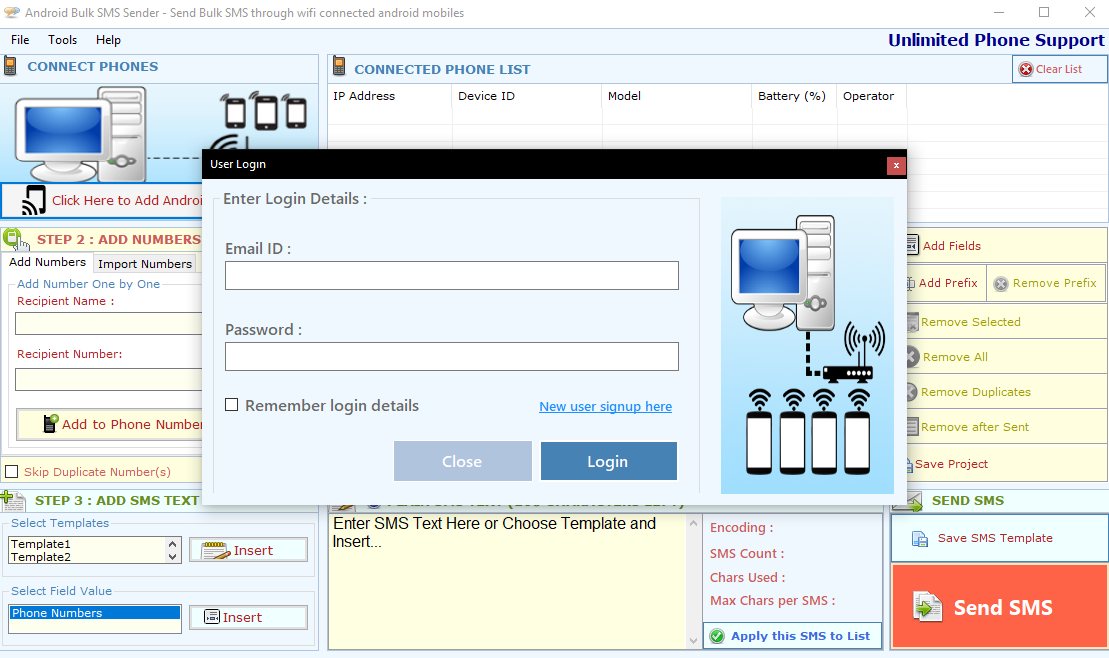
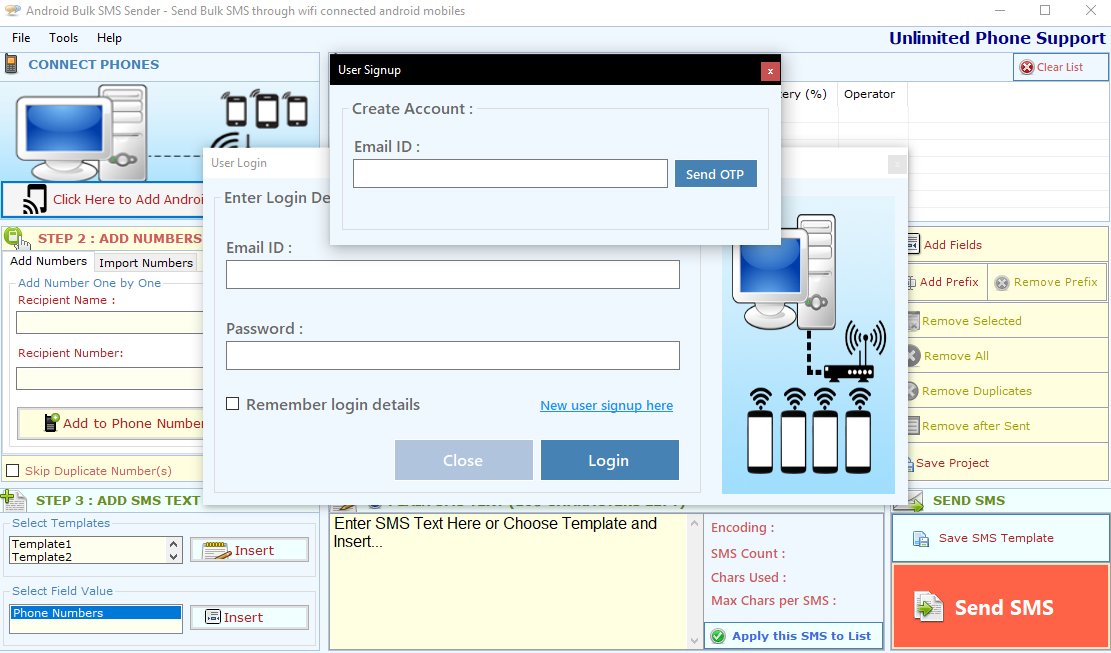
Enter your Email and click on Send OTP Button
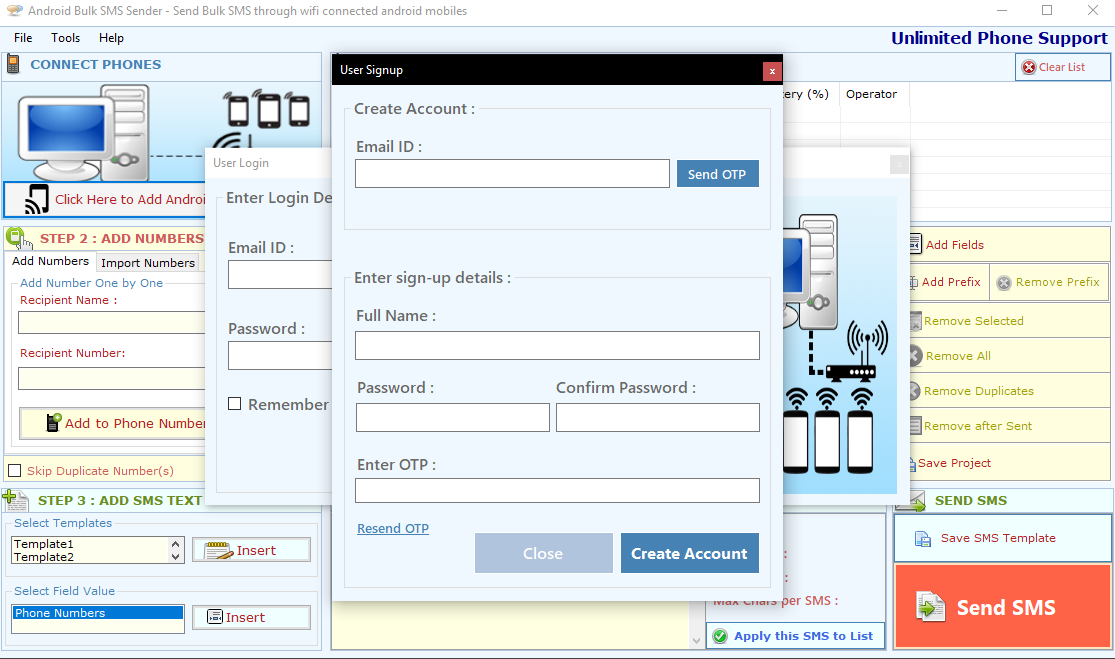
Enter OTP and Fill Details then click onCreate Account Button
Step 2: Login Your Account
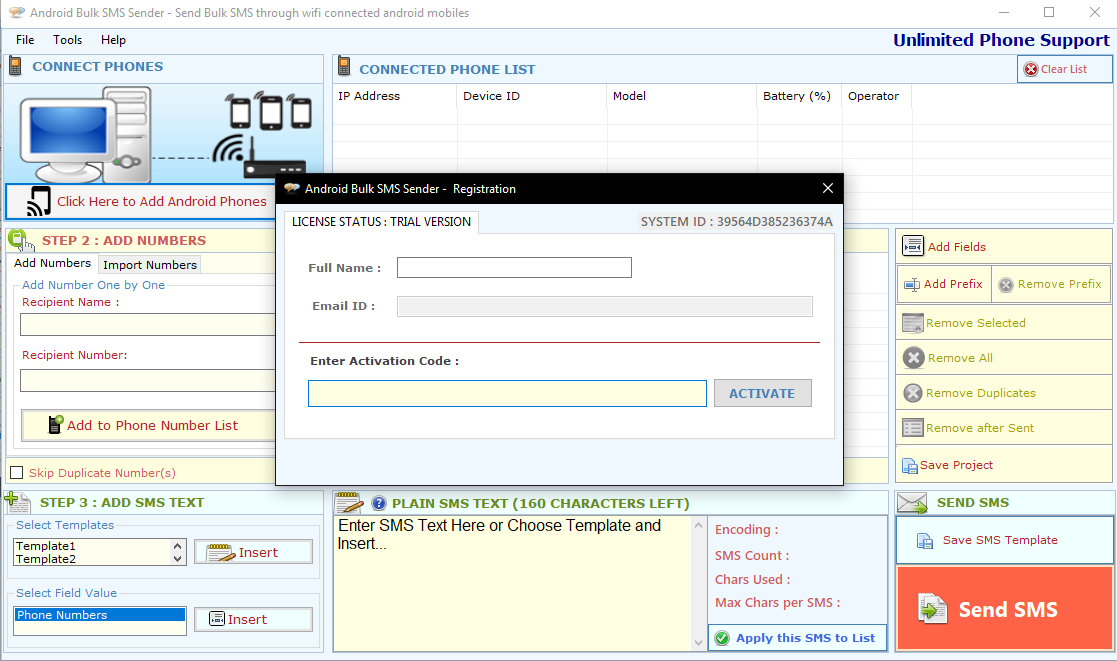
After Login you can Activate your license. The License will Assigned on the Email and always will work with that email.You can't assign license to other email after activation.
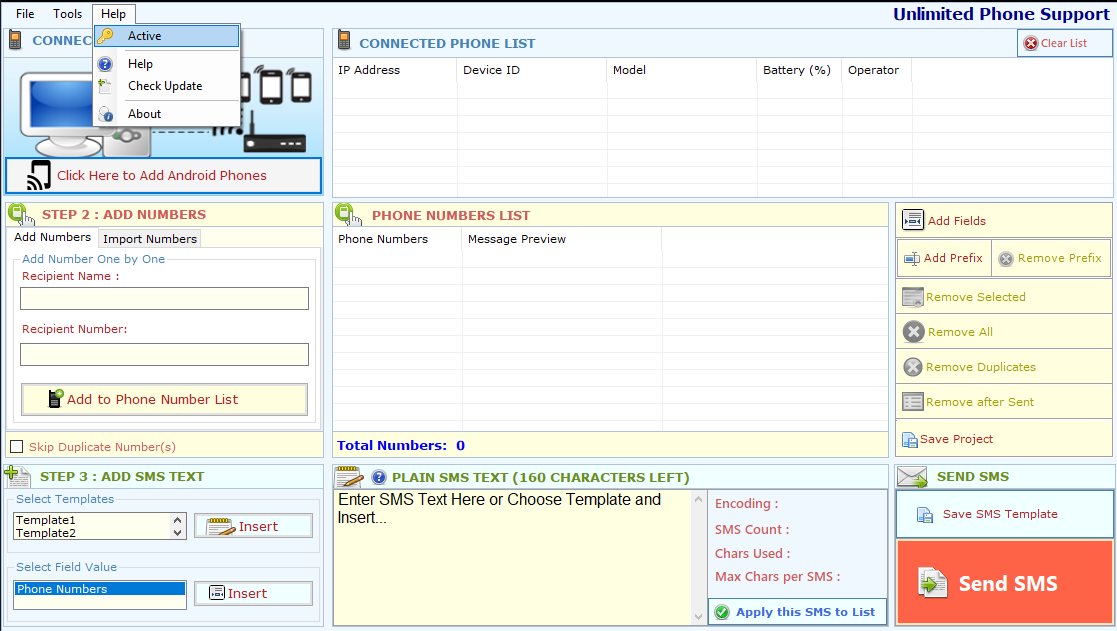
Step 1: Visit Help Menu and Select Activate
Step 2: Enter the License Key then Click on Activate Button
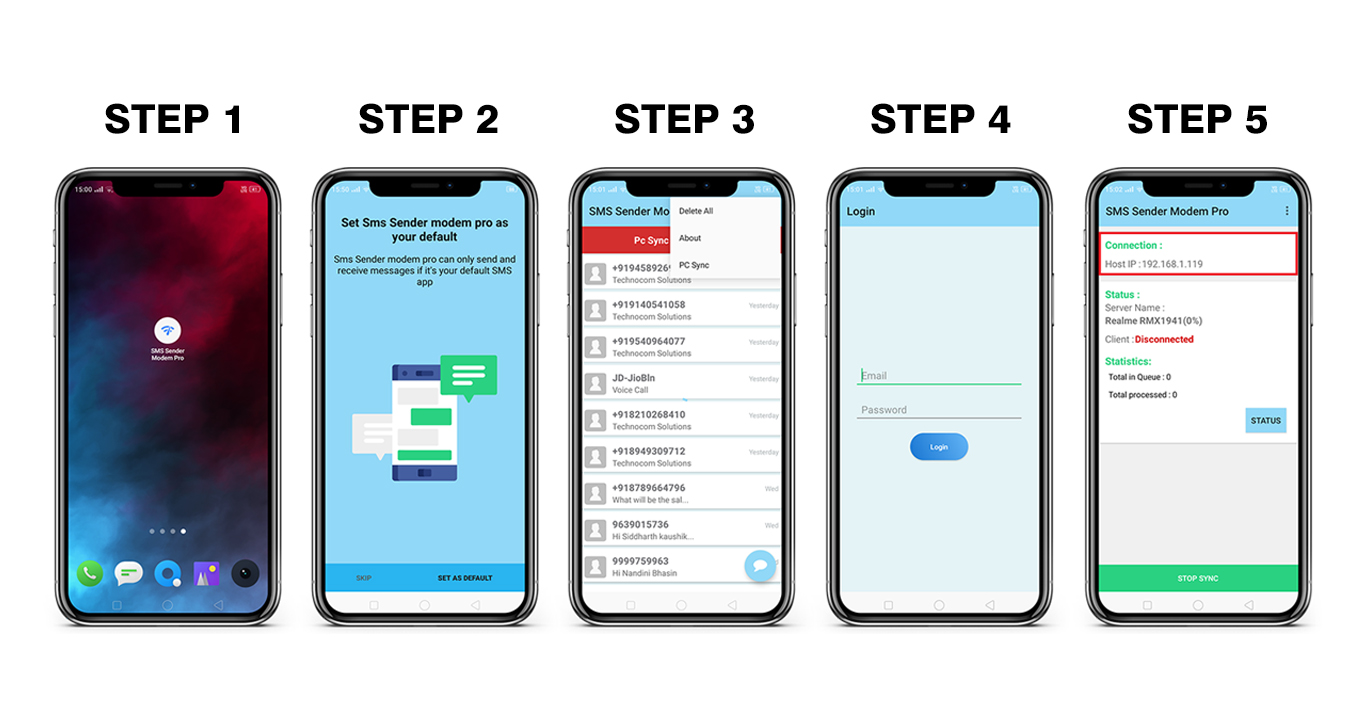
Android Bulk SMS Sender Needs Android Phone to Send SMS, You can connect multiple mobile phones with your PC. Every Android phone needs 'SMS Sender Modem Pro' App. So you have to download and install the 'SMS Sender Modem Pro' App Which is Avelable with Software Setup and you can also Download it from our Website:
Step 1: Setup your Android Phone for Android Bulk SMS Sender
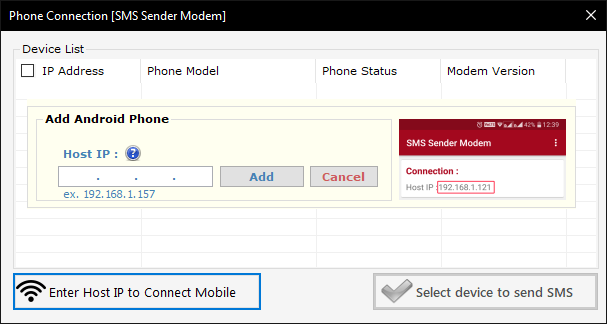
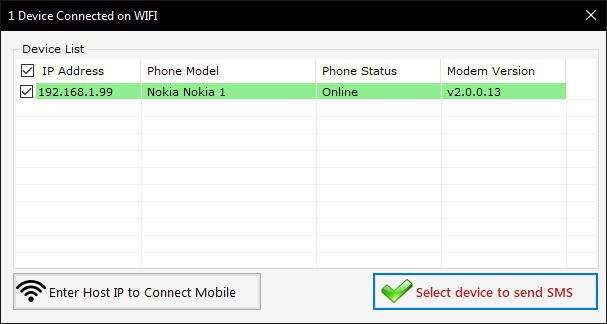
Step 2: Connect Android Phone With Android Bulk SMS Sender
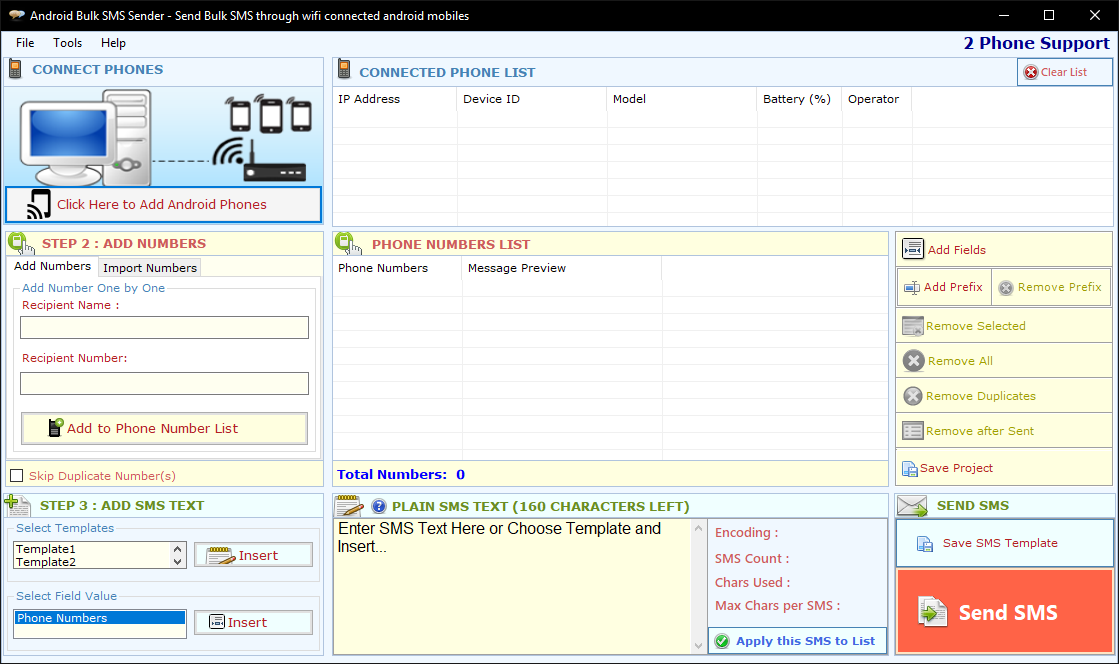
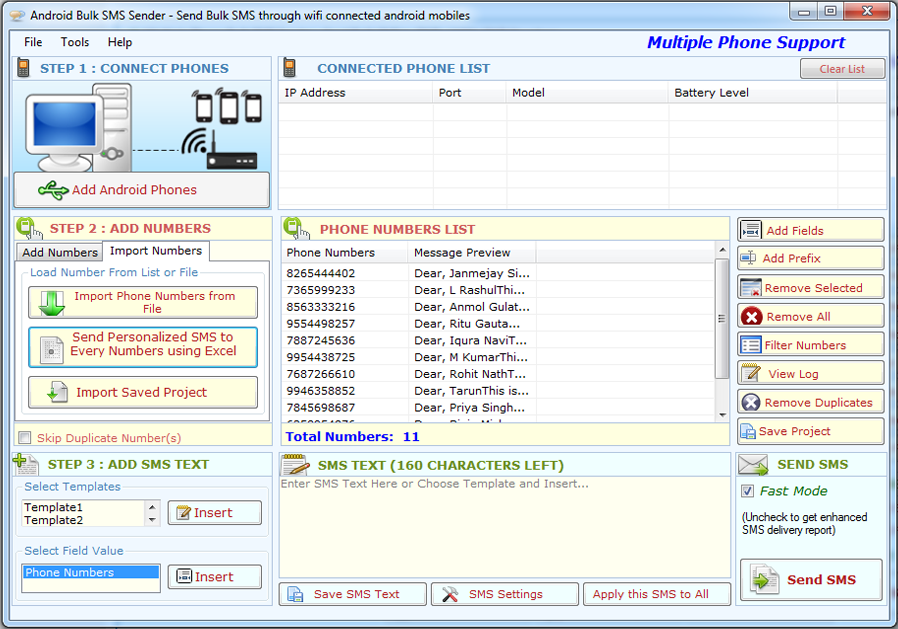
You can add recipient mobile numbers to whom you want to send SMS. Android Bulk SMS Sender provides an easy way to add mobile numbers. You can add numbers either one by one or import numbers from files.
Enter Name and Number of Recipient and press "Add to Phone Numbers List" button.
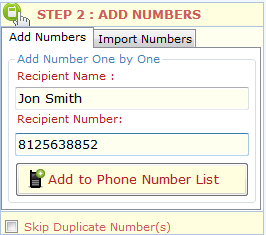
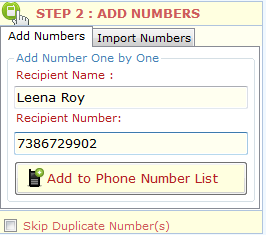
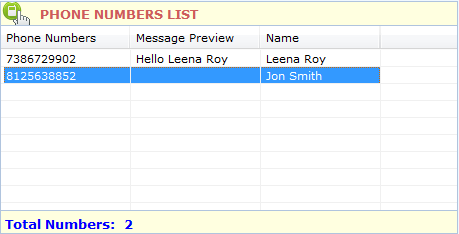
(Figure 2.1)
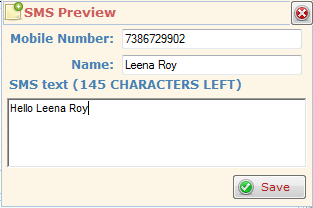
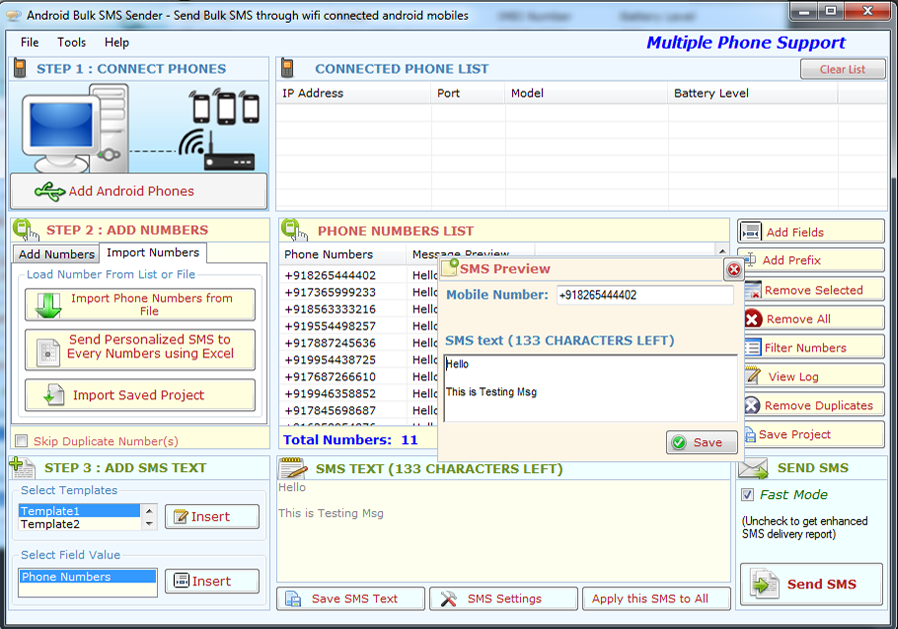
You can modify any Number and fill SMS Text by double-click on Mobile Numbers in the List. Press "Save" button to update changes. (See Figure 2.2)
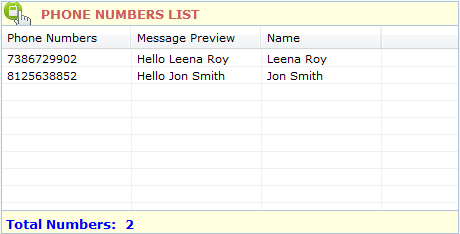
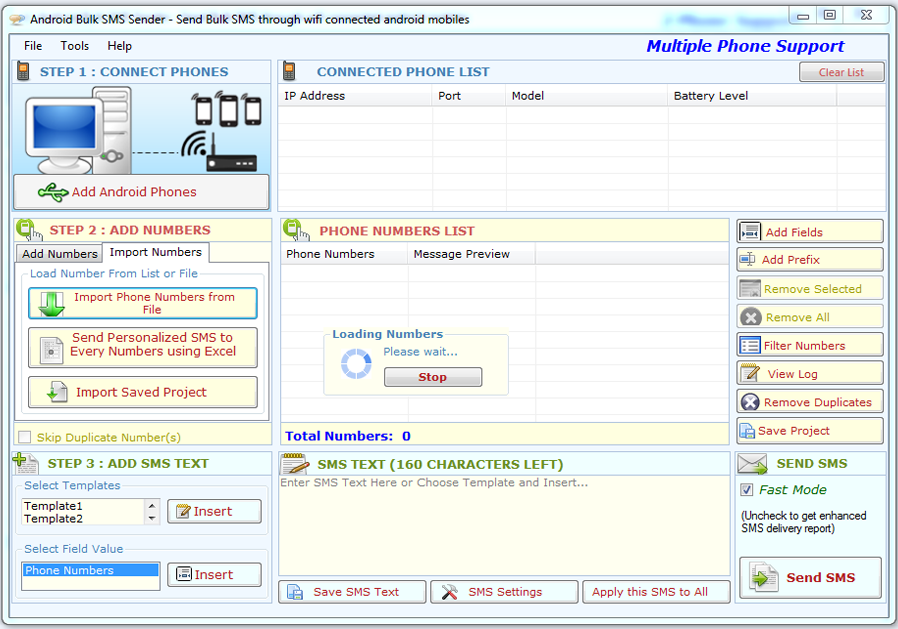
You can import mobile numbers directly from a file (.txt, .csv, .xls, .xlsx). Open "Import Phone Numbers" tab and click on "Import Phone Numbers from File" to Import numbers from file, and then select the file from which you want to import numbers.
If you select an Excel file then it will open another dialog box "Load Data from Excel File" in which you can have option to select the "Sheet" and "Column" to Import numbers. Press "Browse" button if you want to select different excel file. Checked on "My Data has Header" if your data in excel has header in first row. Finally press "Load Numbers in List". (See Figure 2.3)
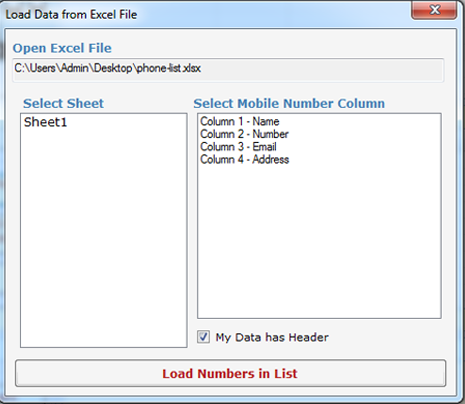
(See Figure 2.3)
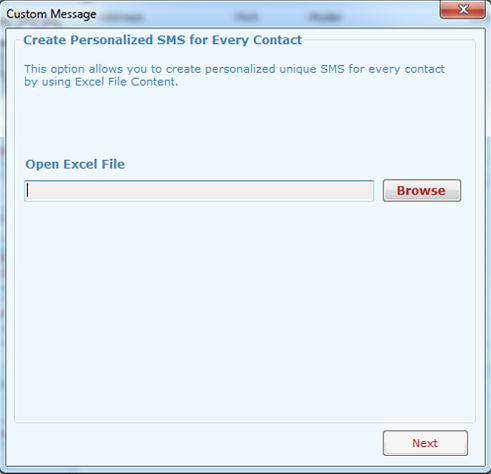
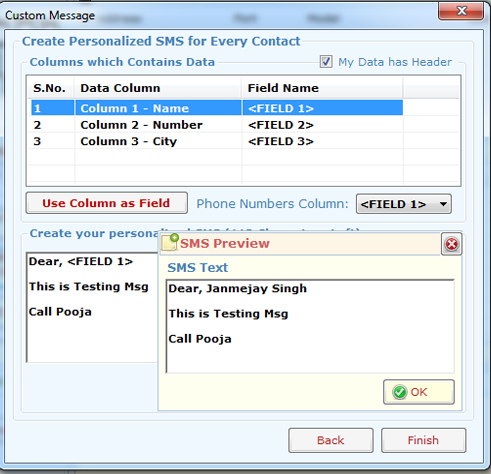
You can create personalized unique SMS for Every Number imported from Excel file. Click on "Send Personalized SMS to every Number using Excel File" button, It will Open a custom message wizard as shown below, now thewizard will guide you through creating custom messages for every imported numbers. Custom Message Wizard has three steps to follow.
STEP 1:
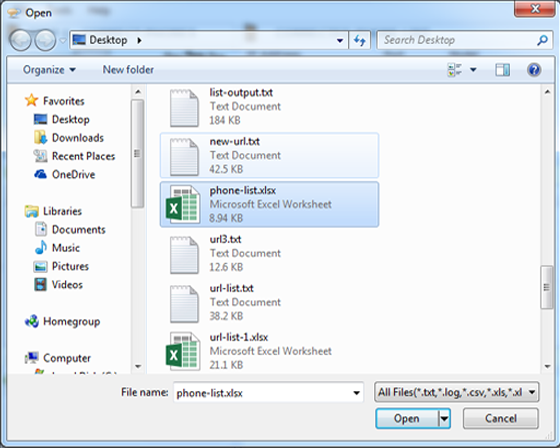
Open Excel File: Click on Browse button to open Excel File.
STEP 2:
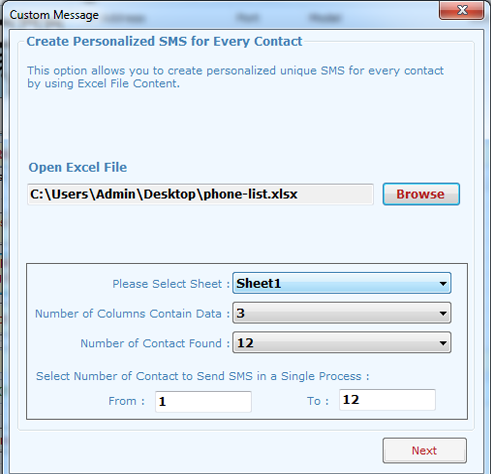
Select Sheet and Numbers of Data: You can see the Available Sheets in selected Excel file with Column and Data detail, Now select the Sheet from which you want to import numbers and select the the range of data you want to extract from that sheets and click on Next. You can also select how many numbers you want to import by filling up "From" and "To" text box.
STEP 3:
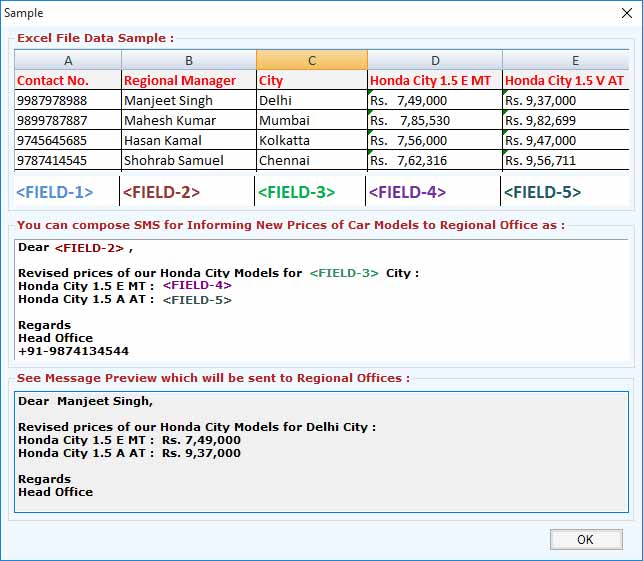
CREATE UNIQUE SMS: You can create your own custom message as shown in image below. You can see an example by clicking on Show Example button.
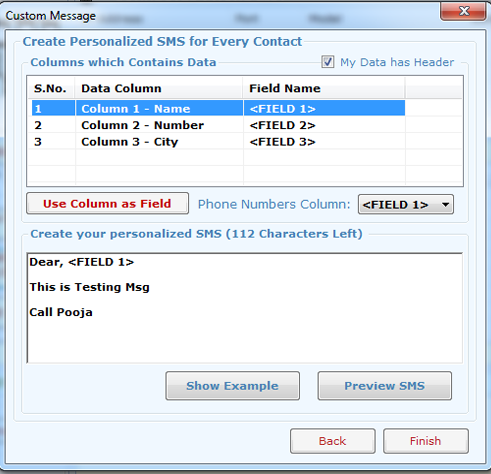
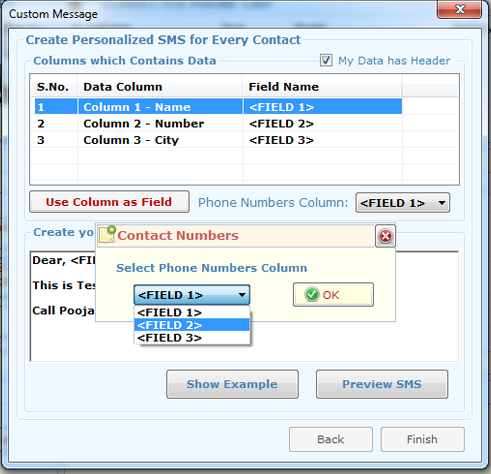
After creating the SMS you can preview the SMS by clicking on "Preview SMS" button now click on finish button and select the Column which contain the mobile number and click on Ok.
Note : Click on "Show Example" button to see an example how to compose unique sms with excel data. (See Figure below)
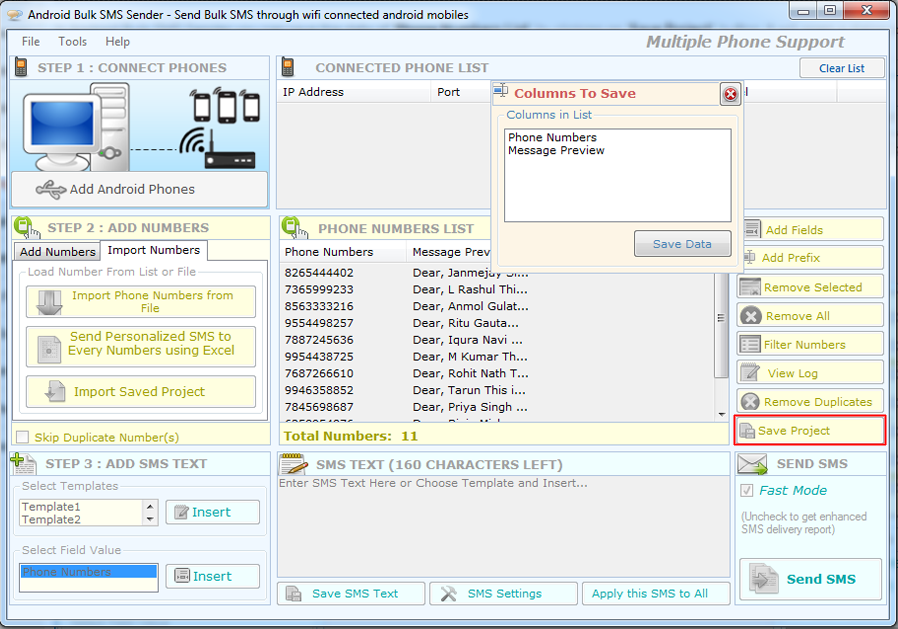
In Android Bulk SMS Sender you can save the data of "Phone Numbers List" by clicking on "Save Project" button. It will open a dialog box to save data.
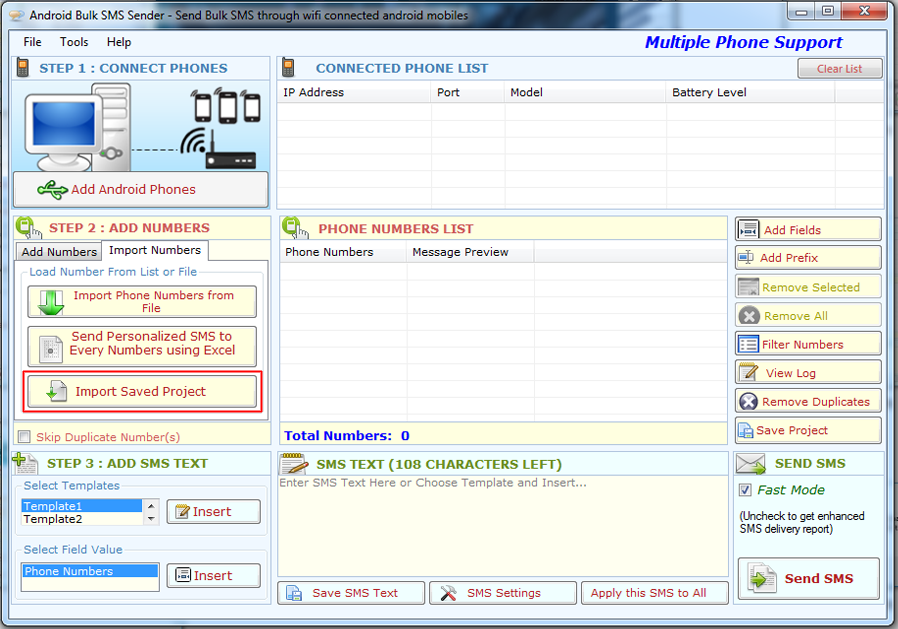
Import Save Project: You can import saved project by clicking on "Import Save Project" and select the file.
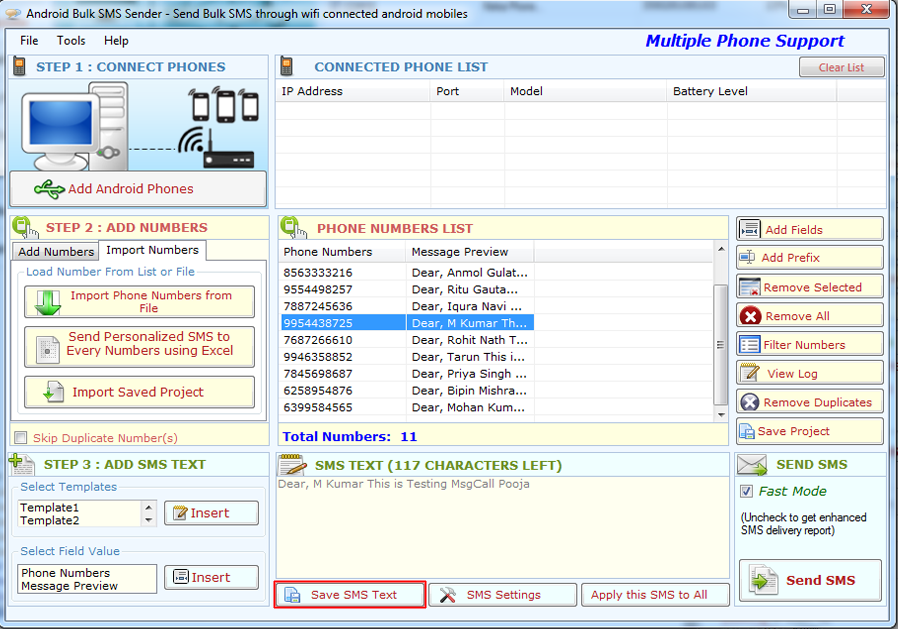
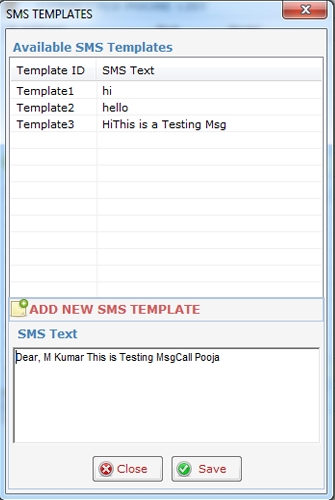
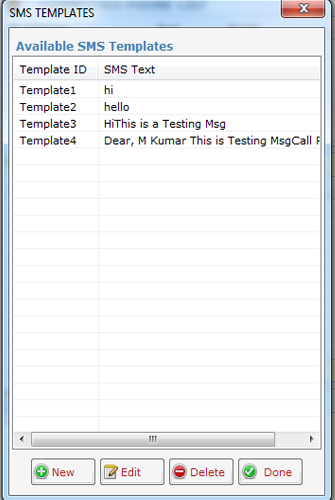
You can save SMS text as a Template for future use. You can save SMS text by Clicking on "Save SMS Text" button. It will open a new window as shown below Click on Save button to Save Template.
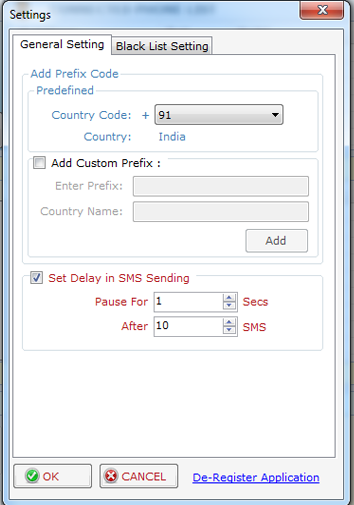
Here you can set the Settings of Sending SMS.
1. Country code as Prefix (as 91 for india).
2. Add Custom Prefix
3. Delay for SMS delivery.
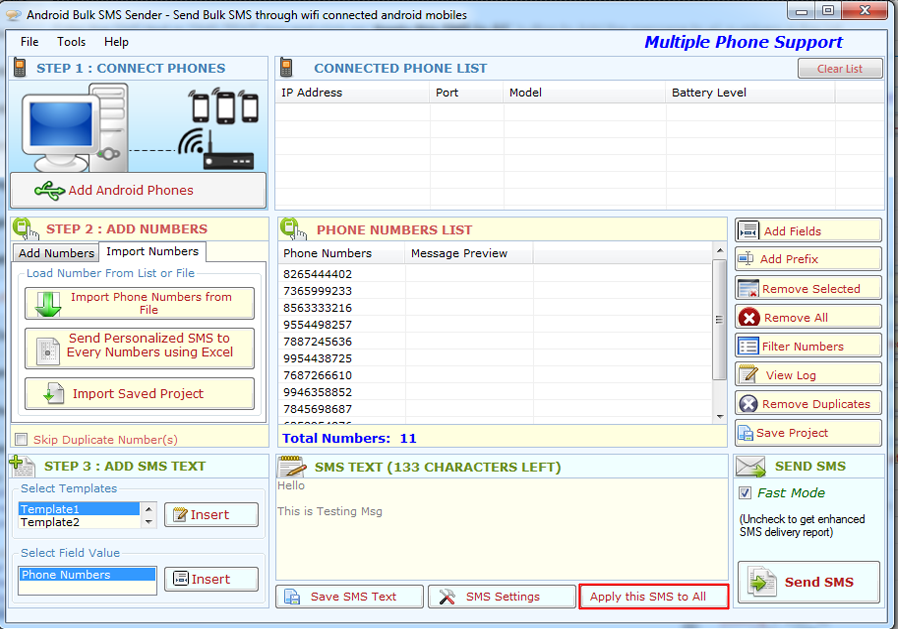
Enter the SMS text in "SMS text" box and click on "Apply this SMS to All" button to set the message for all numbers.
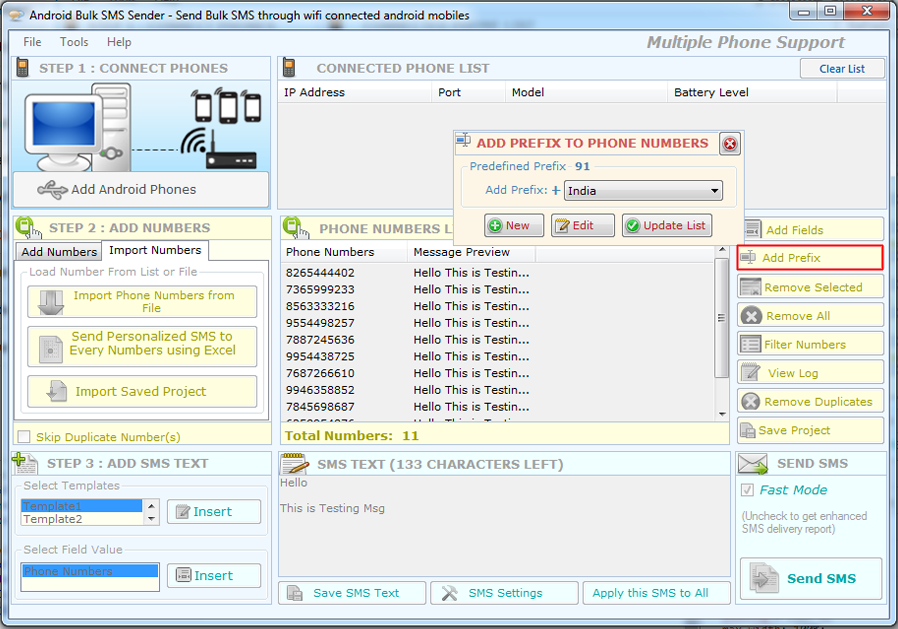
Click on "Add Prefix" button to add country code to all numbers in "Phone Number List" by clicking on Update List button.
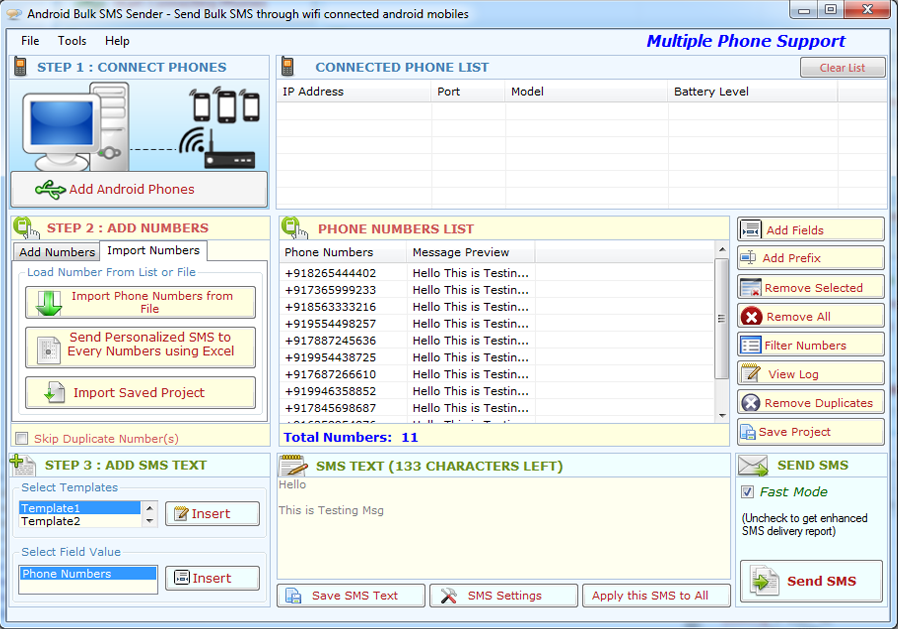
You can edit number and SMS text by double clicking on the number in Phone Number List.
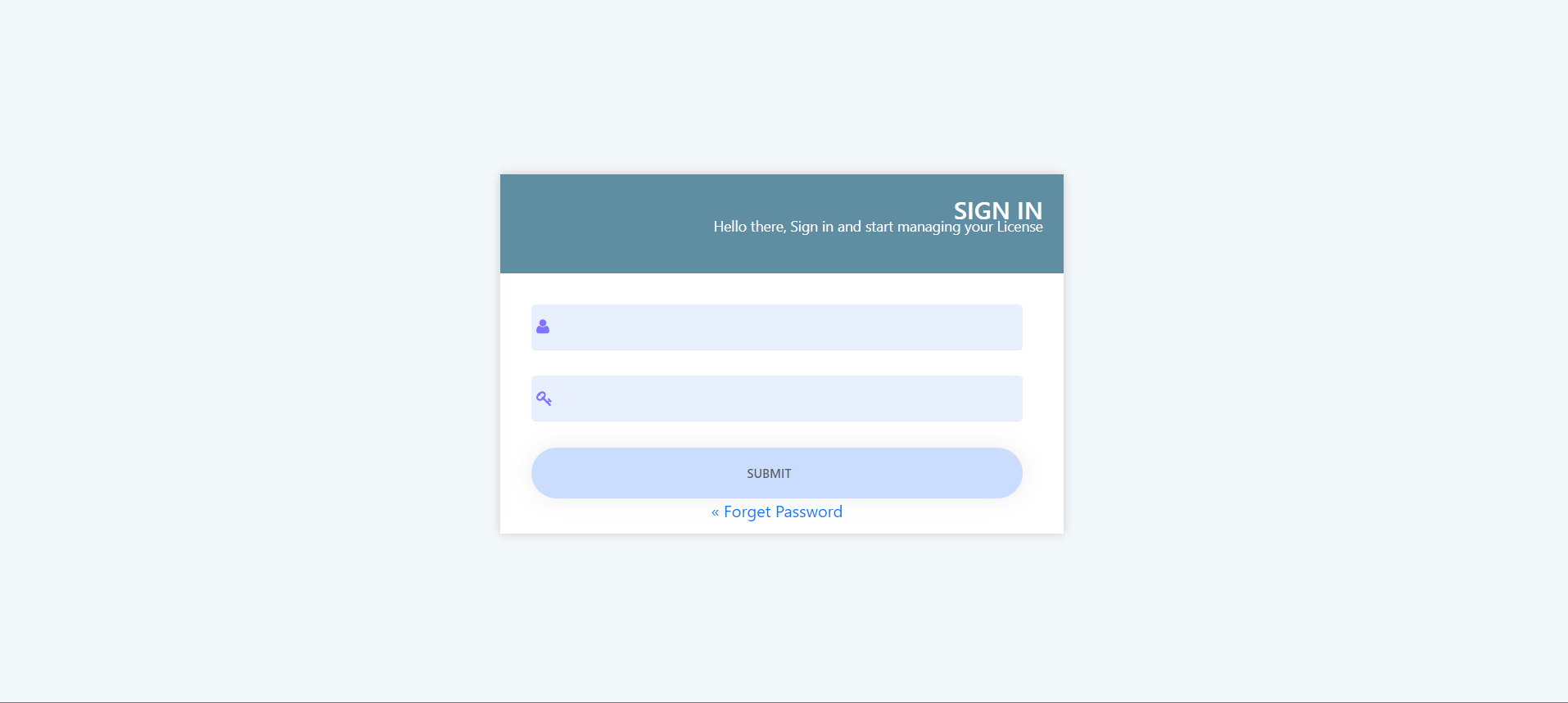
Visit: https://neurane.com/user/ Now Login
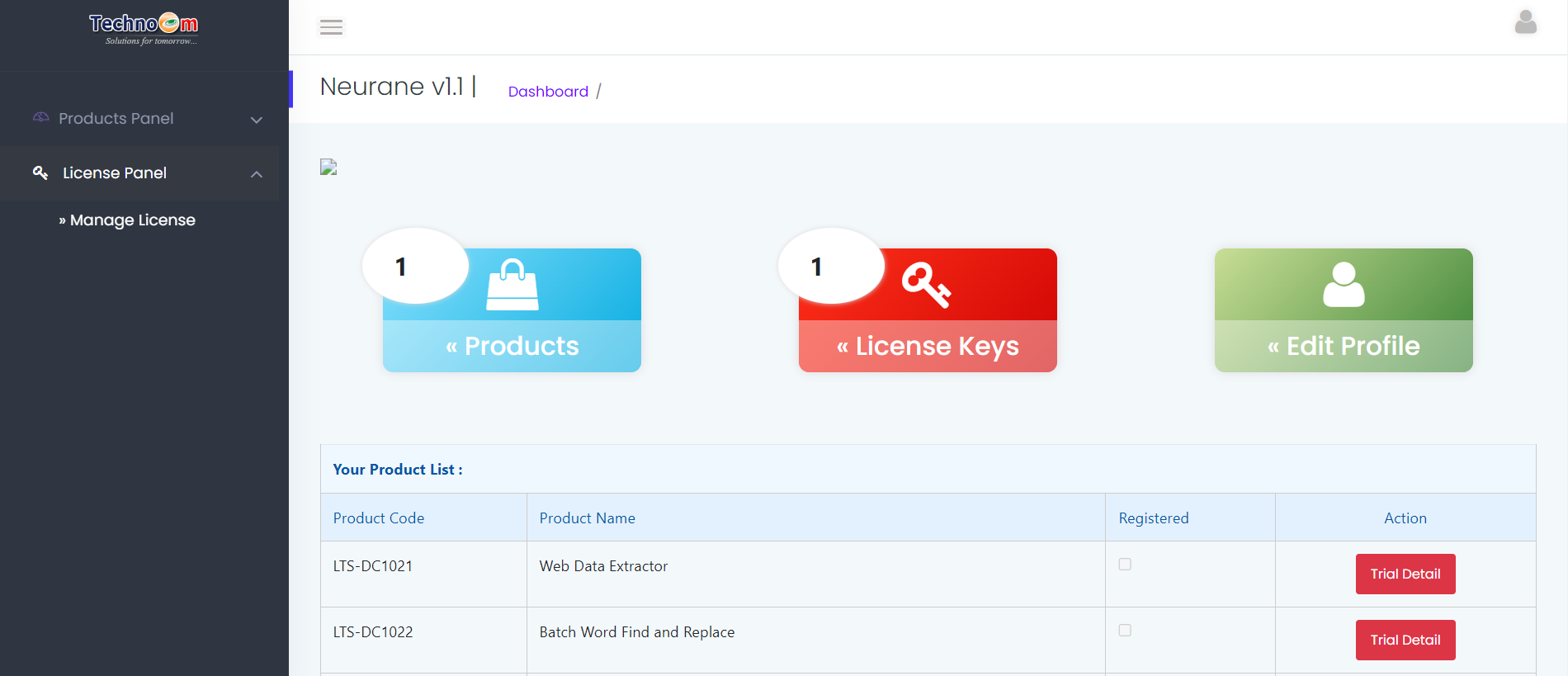
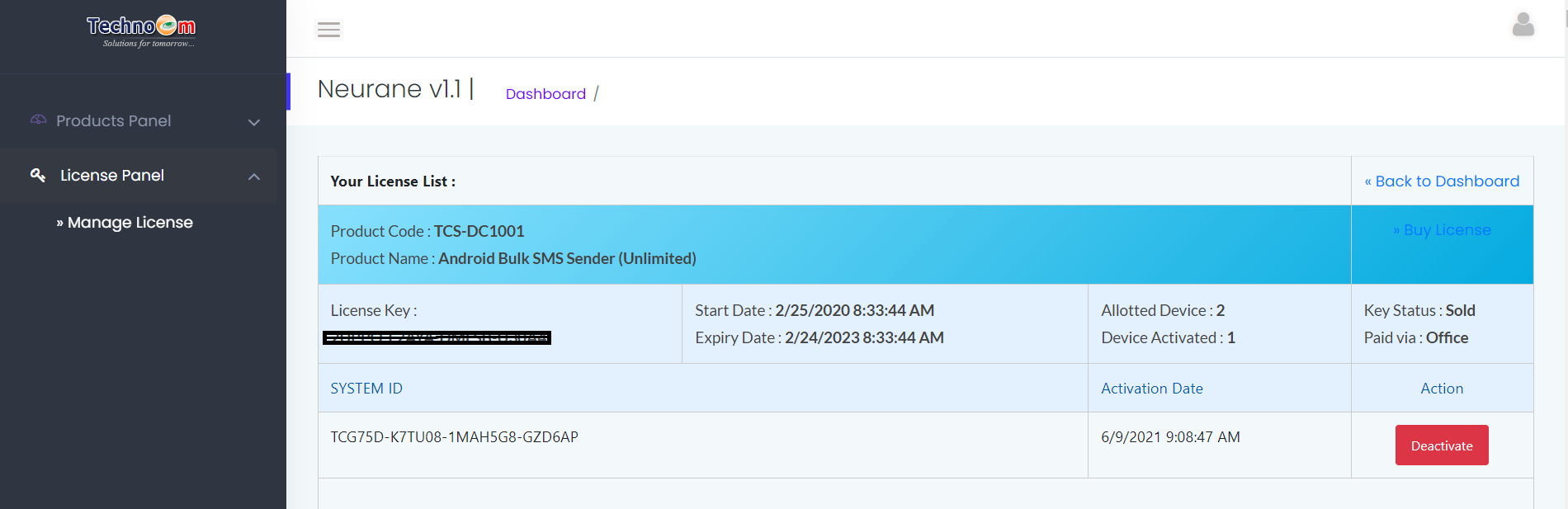
Step 1 : Click on License Panel > Manage License
Step 2 : Find License Key and then Click on Deactivate
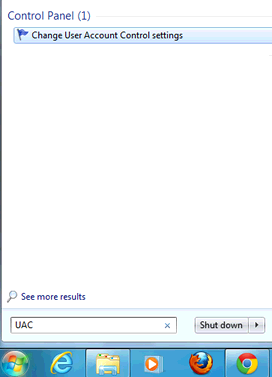
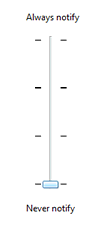
Lower UAC on Vista/Win 7/Win 8.
>>...You have to lower your User Access Control (UAC) so that application can access system resource and run properly. To lower UAC follow these Steps :
Click Start Button >> Type UAC >> Click Change User Account Control Settings >> Set to Never notify
(See Figure 10.1)
Activation Error:
(Unable to Activate Application)
>>...If you face any problem while connecting device or Phone List show "No Device Found". Just click How to Connect Mobile Phones and go through manuals to detect problems. Problem in importing Mobile Phone Numbers from Excel File >>...Just check and ensure Excel File has the data and you have selected the right sheet and ensure that between rows there should not be any empty row. Just sort the data on mobile numbers column to bring all numbers upward. SMS not delivering consistently (SMS Failed Error) >>...Sometime SMS Status column shows Failed consistently, please check you have enough Balance or SMS Plan. >>...Check Mobile Phone is connected properly and working. >>...Check Mobile Phone has enough battery power. For any other technical problem you can email us : info@lantechsoft.com
Copyright © LantechSoft | info@lantechsoft.com