home download support company contact us
PowerPoint Find & Replace v1.5(Office Automation Tools)
Batch Word Find & Replace

Overview :

PowerPoint Find & Replace software is an useful tool to FIND and REPLACE multiple words in multiple MS PowerPoint 2007, 2010, 2003 & 2000 ppt/pptx/pptm files, you can also format forecolor, bold, italic, underline and strikethrough of any word or text in any PowerPoint presentation with our Replacement utility. You can Find & Replace with different criteria and formatting. The new version is more efficient and easy to use, we fixed many bugs and introduced new features like Unicode Support, builtin color picker and made formatting easy, this version is more user friendly with Step wise processing. In all you can find and replace multiple words in 1000's of PowerPoint files (ppt, pptx, pptm) in no time.

Info
Version
1.5
Size
3.0 MB
buy now
download
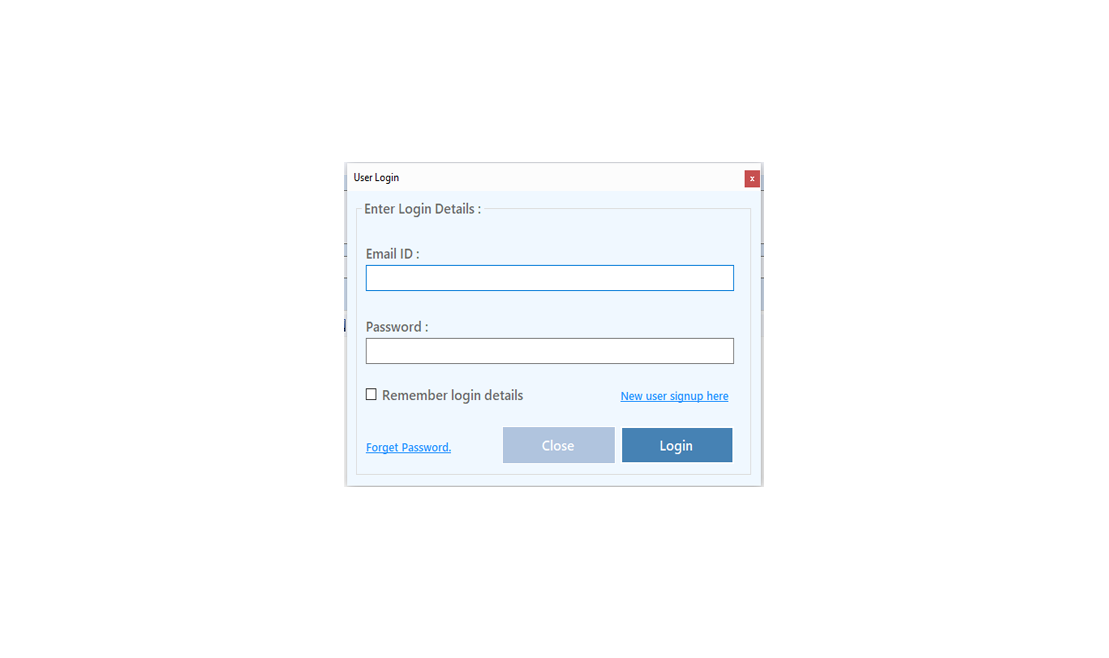
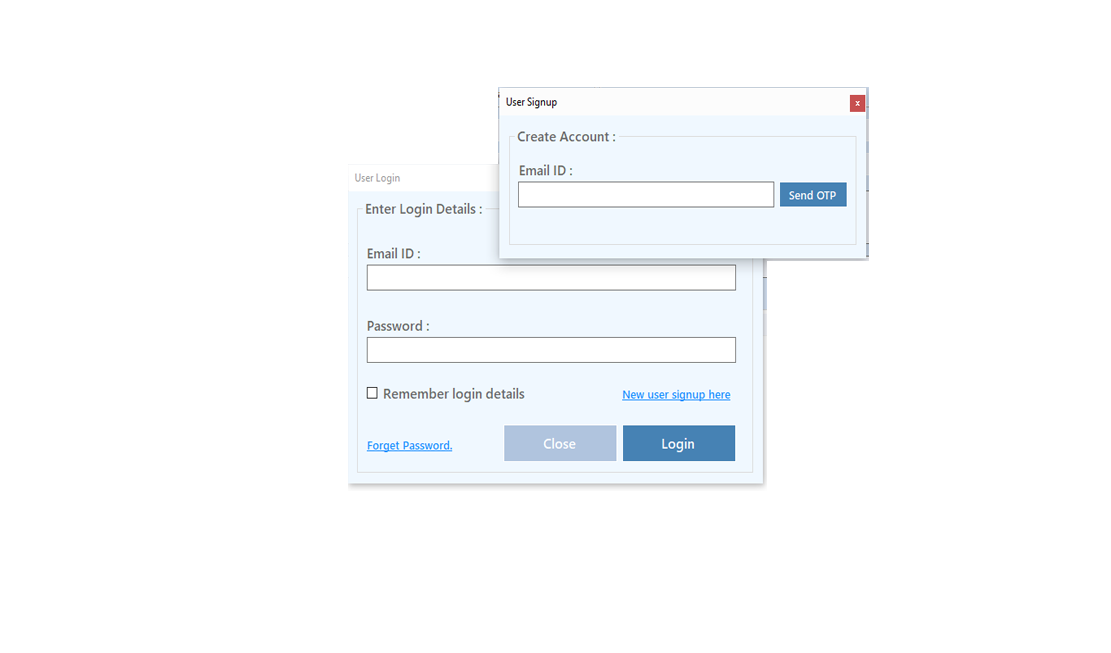
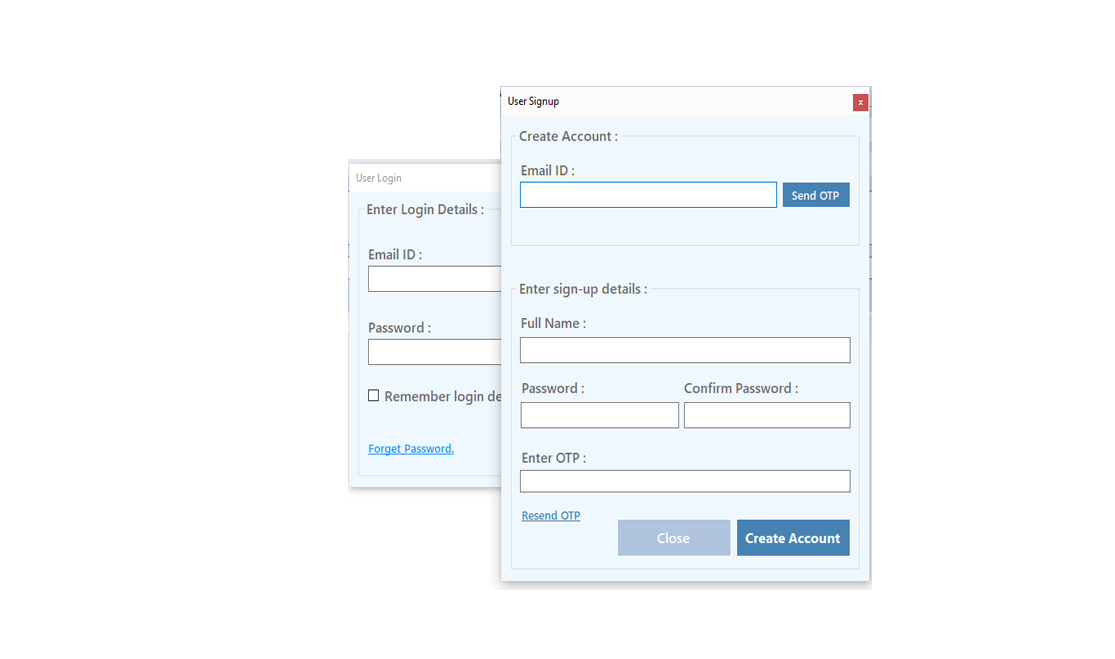
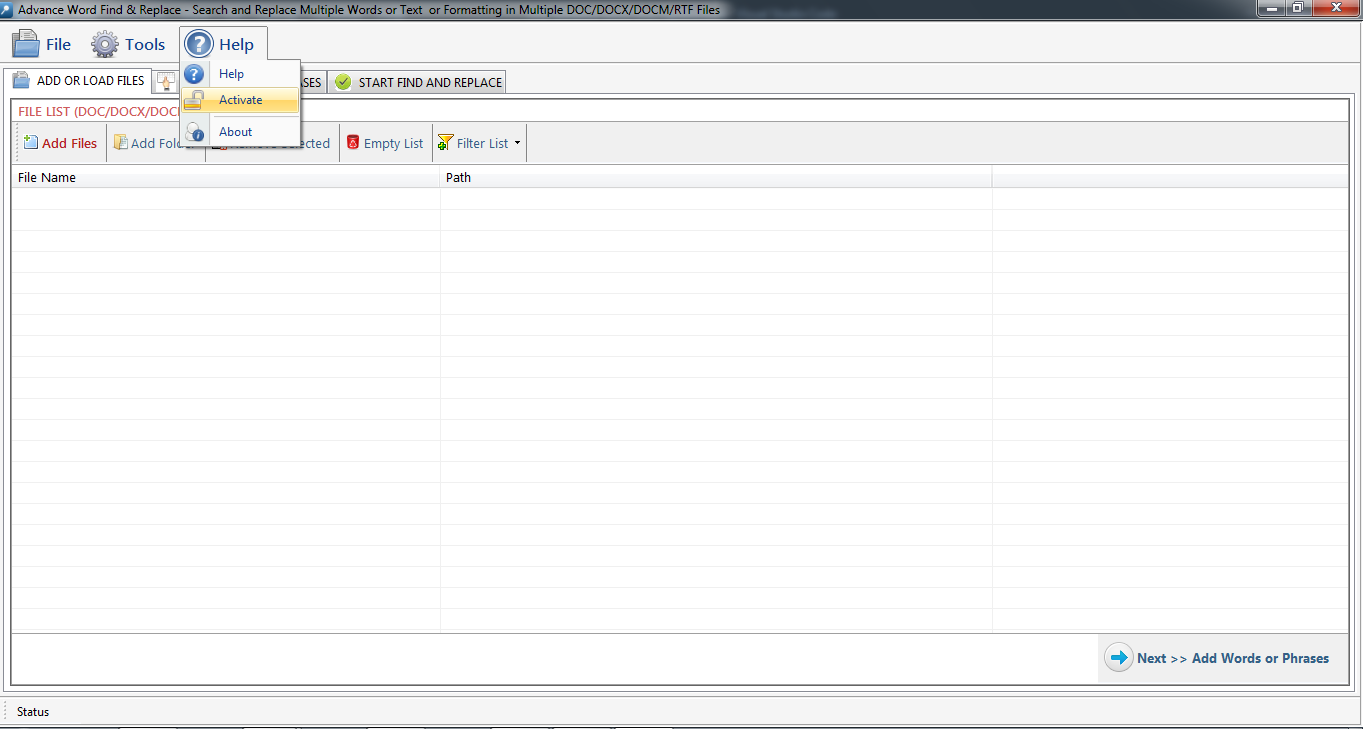
Registration/Buy/Activate:
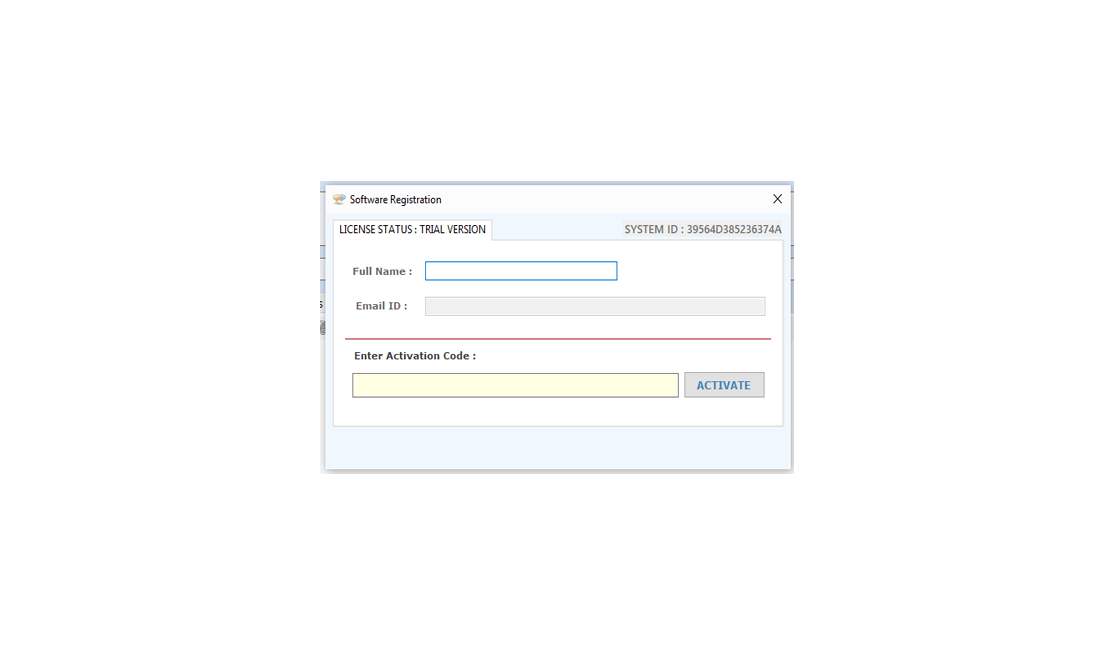
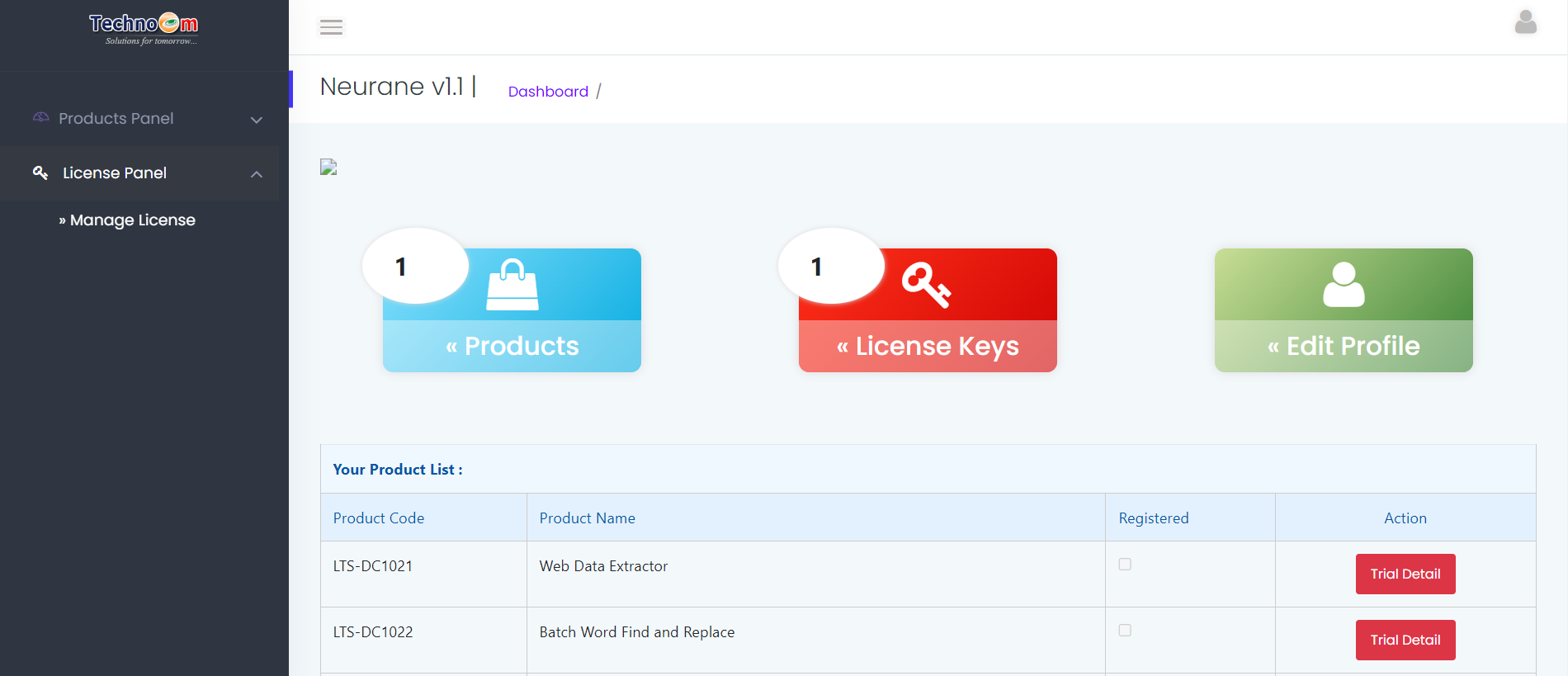
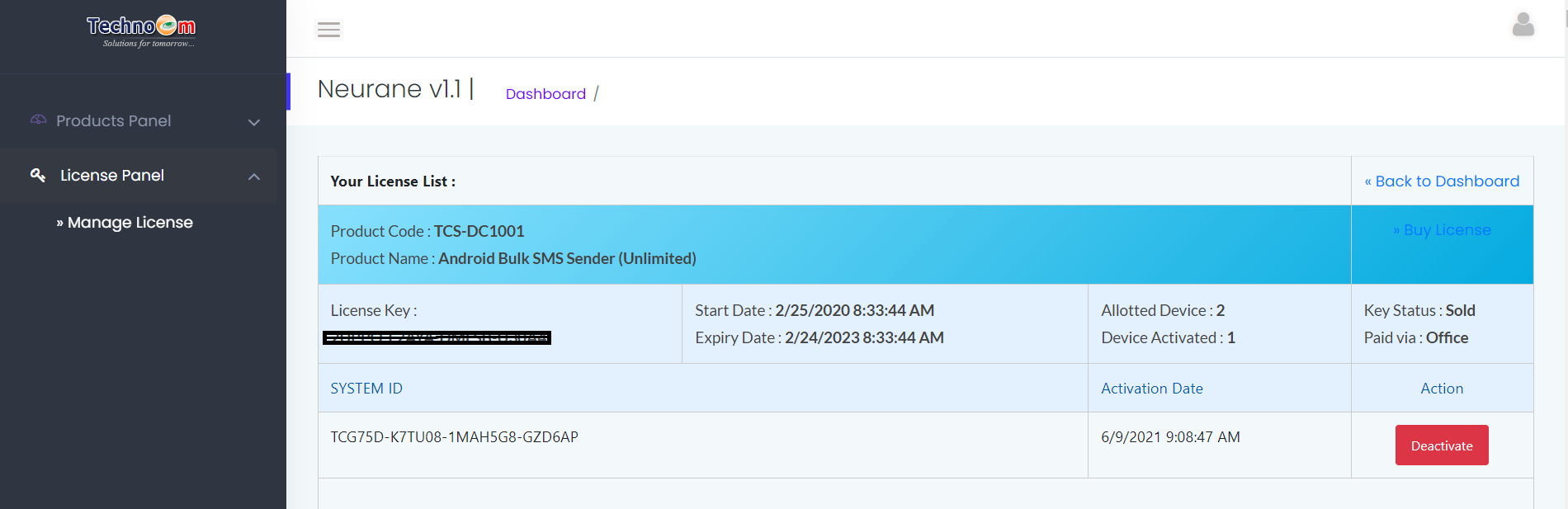
Register: To register the "PowerPoint Find & Replace" click on the "Register Now" Button and fill the Registeration Detail with the Activation Code.

Buy : You have to Buy "PowerPoint Find & Replace" to get Activation Code. You Can Buy it From our Site by Clicking on "Buy" button.

Try Demo : You can use demo version of "PowerPoint Find & Replace" by clicking on "Try Demo" Button
registration

registration
How to Use "PowerPoint Find & Replace"
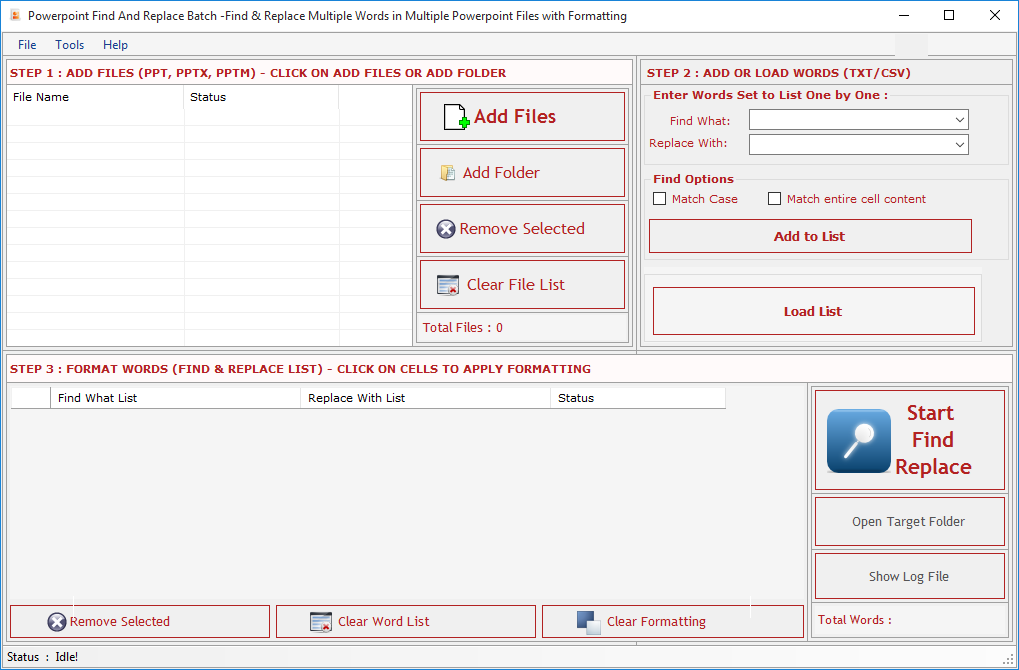
We made this version more user friendly with its new stepwise process. It has Three steps:
  • Step 1 : Add Files (PPT).
  • Step 2 : Add or Load Words (CSV/TXT).
  • Step 3 : Format Words & Final Process.

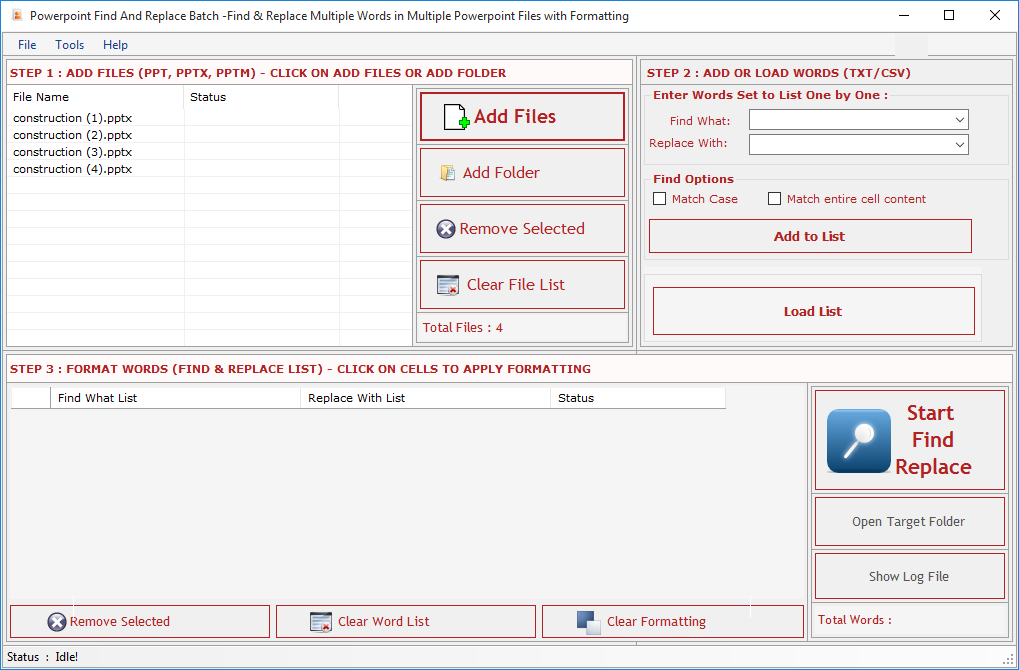
Step 1 : Add Files - In this step you can add MS PowerPoint (.PPT) files, just click on "Add Files" button to open file dialog box select files you want to add, you can select multiple files. You can also add all files of a selected folder by clicking on "Add Folder" button, it automatically search the selected folder and add all the MS PowerPoint Files.

Remove Selected : You can remove the selected files from the file list, to select multiple files in file list use Ctrl or Shift key. You can also remove files by pressing DEL key from Keyboard.

Clear File List : You can remove all files from the file list, it will alert you before removing all files. You can also remove files by pressing DEL key from Keyboard.

Add Words : Press "Add Words" button to go to next Step.

Batch Word Find & Replace

Batch Word Find & Replace
Step 2 : Add Words- Click "Add Words" button to enable
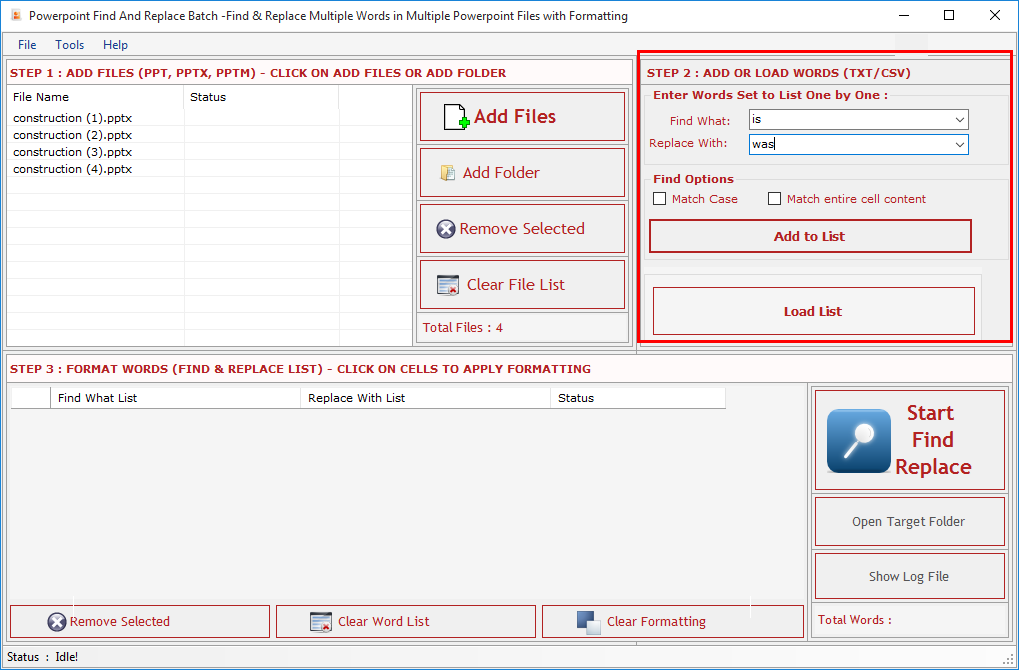
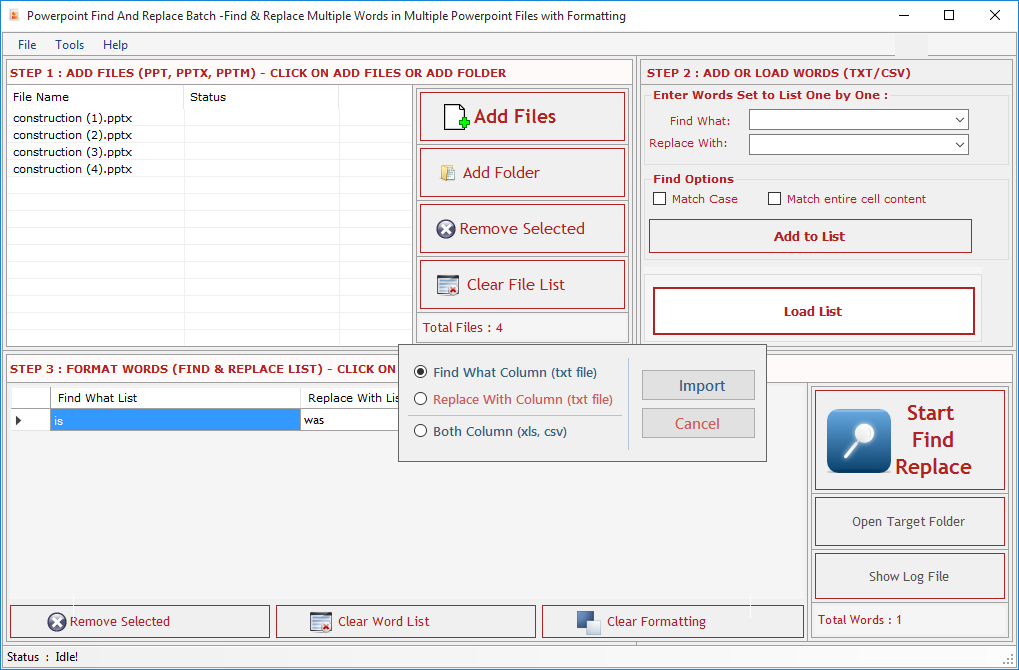
Step 2 : Add Words - In this step you can add words or phrase for Find What and Replace With List Set by Set or from a Comma/Line Separated Text file. You can type word and press enter or click "Add to List" button to add the same on Word List below. To add Words from TXT file just check the Find What or Replace With radio button and click "Load List" to Add Words.

Find What: Enter word in this text box to Find. You can also find special characters like Paragraph Marks, Tab Characters, Manual Line Breaks and all special characters available in MS-PowerPoint which is not listed here.

Replace With: Enter word in this text box to Replace. You can also replace special characters like Paragraph Marks, Tab Characters, Manual Line Breaks etc. as you do in MS-PowerPoint.

Find Options: Before adding word set select your desired find options.

Match Case: Check this option if you want your search to be case sensitive.

Match Whole Word: Check this option if you want your search to be word specific.

Formatting Option
Step 3 : Format Words- Click "Format Words" button to enable
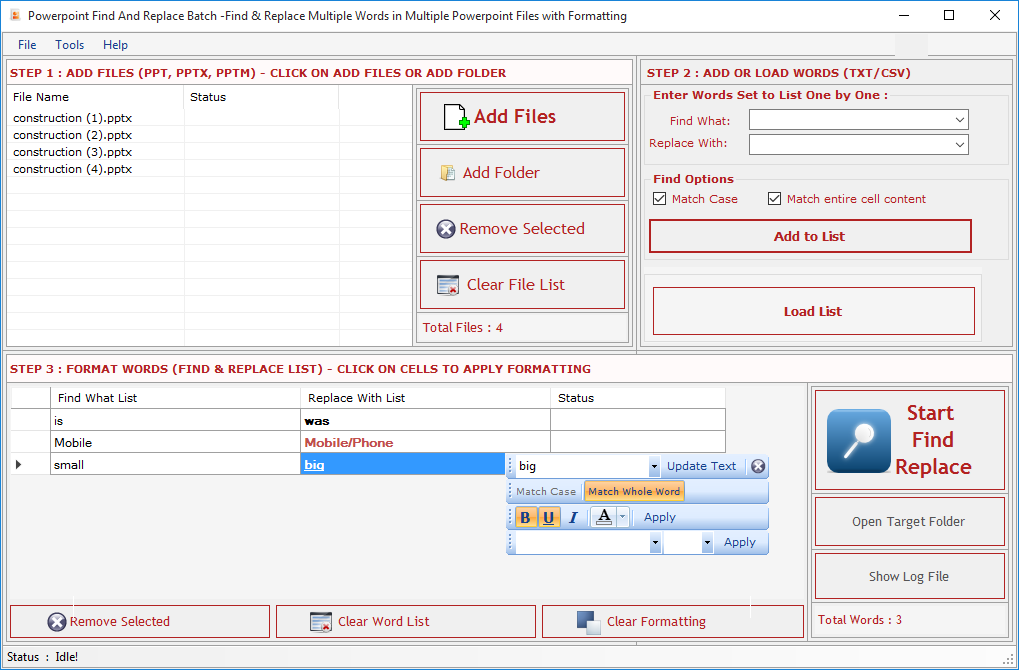
Step 3 : Format Words & Final Process- In this step you can format or highlight your selected words or phrases for Find What and Replace With List or you can also Edit the Text and change the Find Options.

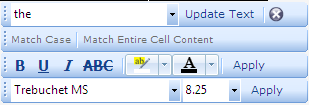
Click on a Word in the List to open format panel. Format Panel has four bars.
First Bar   Word Find & Replace
Second Bar  
 Third Bar 
Fourth Bar 
  • First bar shows the Text, you can change the text, just type in textbox and press Update Text button to modify the Text.
  • Second Bar shows the Find Options like Match Case, Match entire cell content, you can change them at this point.
  • Third Bar Shows the formatting tools like Bold, Italic, Underline, Strikethrough, Backcolor and Forecolor.
  • Fourth Bar shows the Font Name & Font Size. If you apply formatting on Find List it will search in the formatted text in doc files. If you apply formatting on Replace With List it will format the replaced word.

Remove Selected : Remove all selected words from the List.

Clear File List : Remove all words from the List and Empty the Word List.

Clear Formatting : Clear all applied formatting from the list.

Start: To open the "File Folder Options".

Open Target Folder: To open Separate Folder which will be selected to save the processed files.

Show Log File: To open log File.
Batch Word Find & Replace
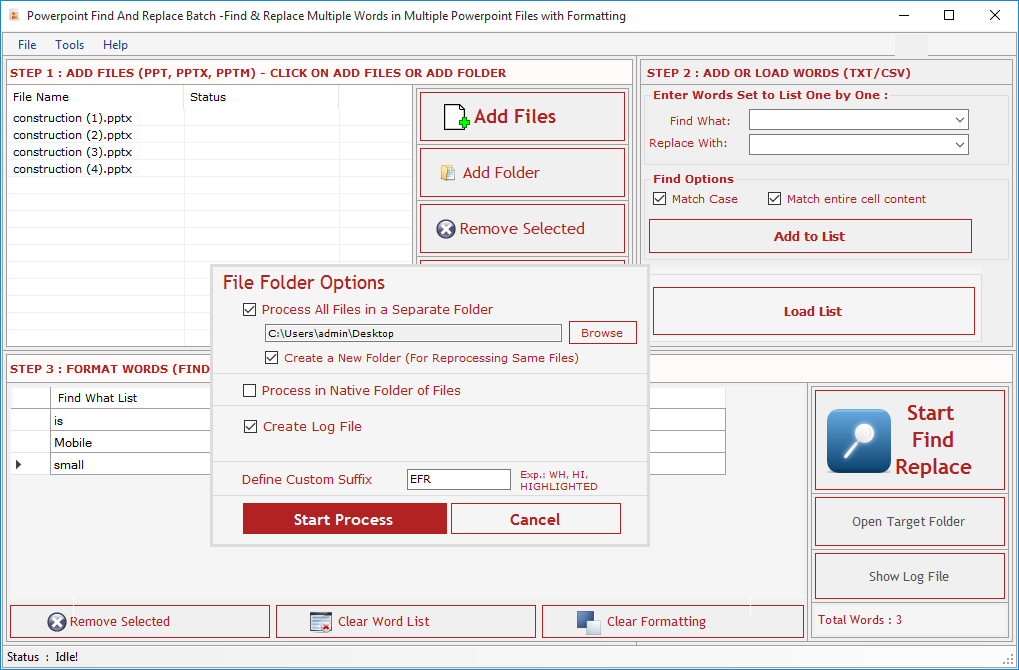
File Folder Options:

Process all Files in a Separate Folder : Check this option if you want to process all files in a single separate folder. Click on Browse button to select the folder. In this option all processed files name include a counter and suffix like "1_FR_1.ppt", "1_FR_2.ppt", "2_FR_3.ppt"

Process in Same Folder : Check this option if you want to process all files in their native folder.

Define Custom Suffix: You can define your own initial to processed files, if you leave blank Suffix Text box then it overwrite the original files if Native Folder option is selected means find and replace process will be done directly in the original files..

Create Log File : Check this option if you want to create a log files for analyzing your file and word process.

Overwrite : Check this option if you are reprocessing the same files. It will overwrite previous files.

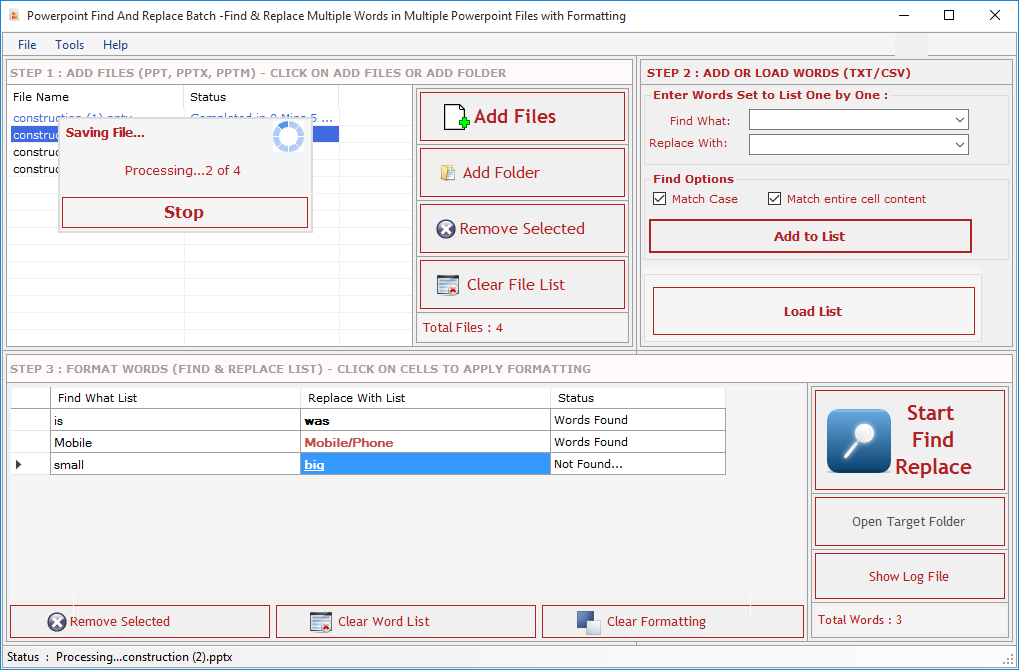
Start Process : Press "Start Process" to start the Find & Replace process.

Stop Process: To Stop the Find and Replace process.
Batch Word Find & Replace
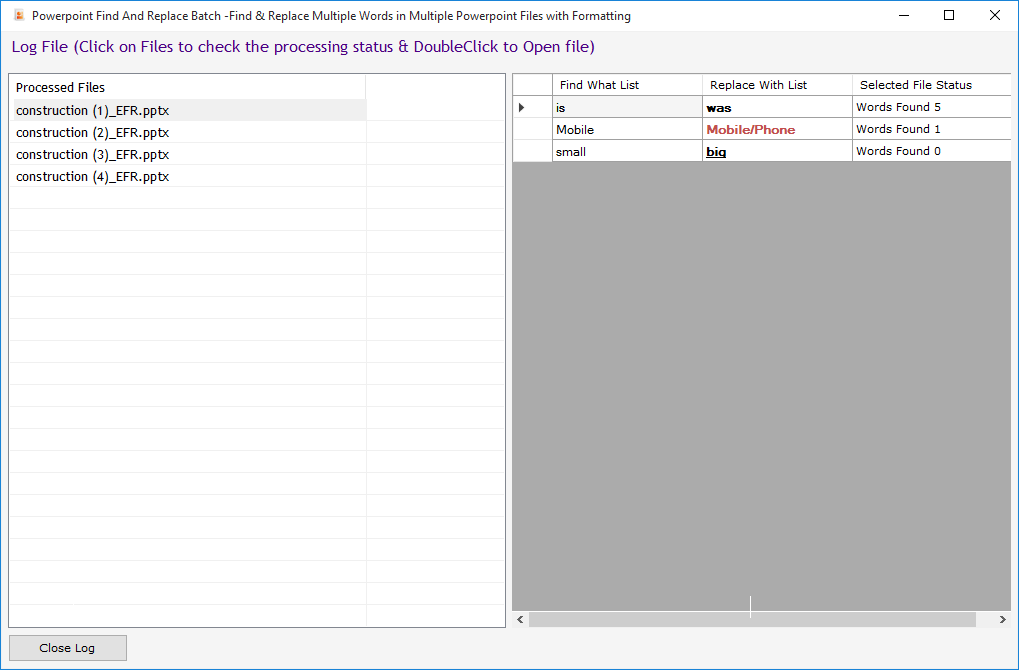
Log File :-
A log file created which has all files and word records, it shows in which file how many words are found & replaced and highlighted and you can also open each file by double clicking on file name direct from the log file itself.Click on Header to open File.
log file
Find And Replace Combo Offer 1
Batch Word Find & Replace

add

Batch Word Find & Replace

add

Batch Word Find & Replace
Excel Find & Replace Batch v1.5
(Find & Replace and Highlight each word in MS EXCEL in Batch.)
PowerPoint Find & Replace v1.5
(Find & Replace and Formatting Tool for ppt,pptx,pptm.)
Batch Word Find & Replace v4.1
(Find & Replace and Highlight each word in MS WORD in Batch .)
we accept
Offer Price   US $ 119.00 Only
(save US $ 40)
 
Products
Email Extractor Software
Phone Number Extractor
SMS Sender Tools
Office Automation Tools
Word Count Software
unicode converter
Excel Addins
Other Softwares
help  Get a Free Quote...
 OnLine Help

 Special Offers...
Special Combo Offers
We offer a special combo offer on some products, click here to know more details.

Special 25% discount
We offer a special discount upto 25% to our existing customers. It applies to all new & old customers. If you ever bought a product from us you can avail this discount by sending us the previous purchase transaction detail. Now you can purchase any of our product at 25% less of its actual price....more
customized software development
 
home