
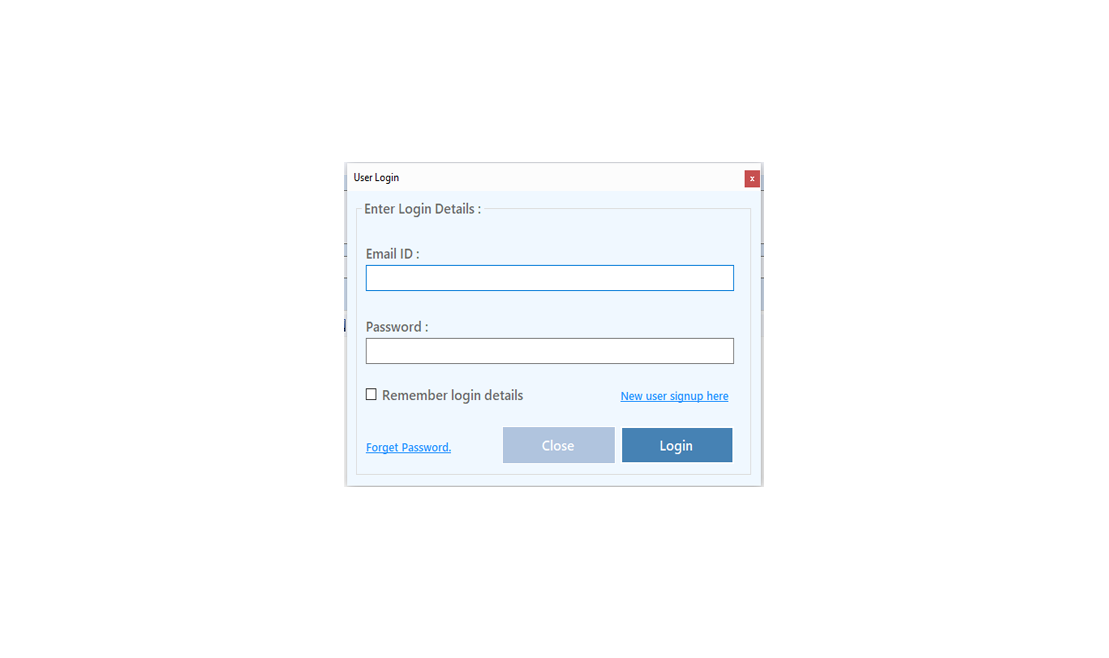
To Improve user Experience and Security we Introduce Signup and login Feature in our Software.
Step 1: Sighup
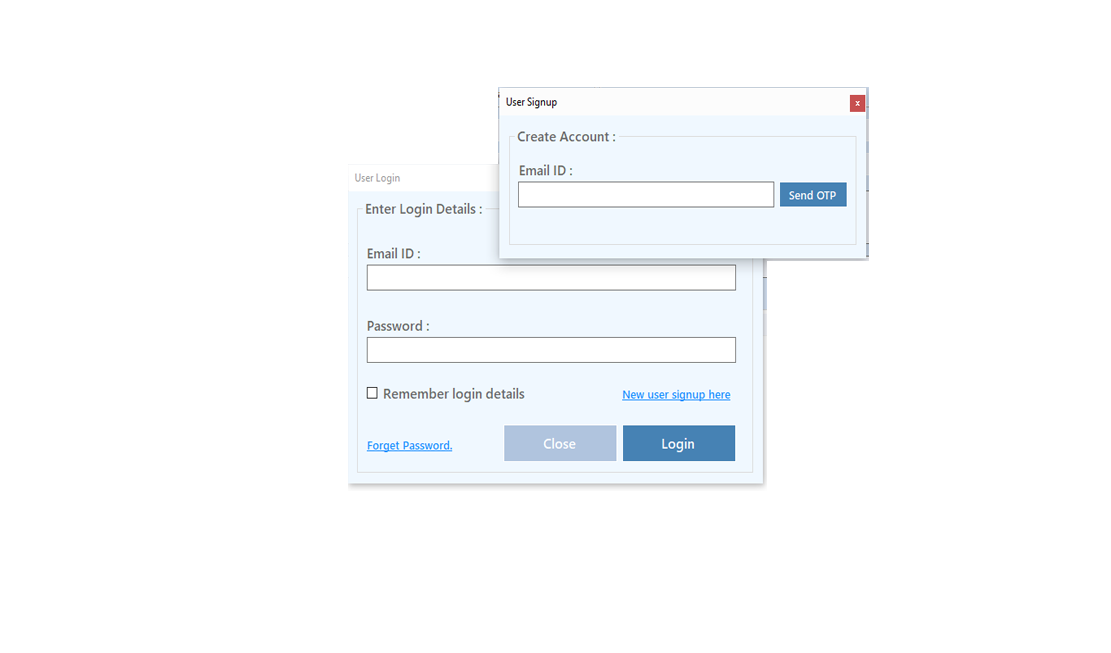
Click on New User Signup Link
Enter your Email and click on Send OTP Button
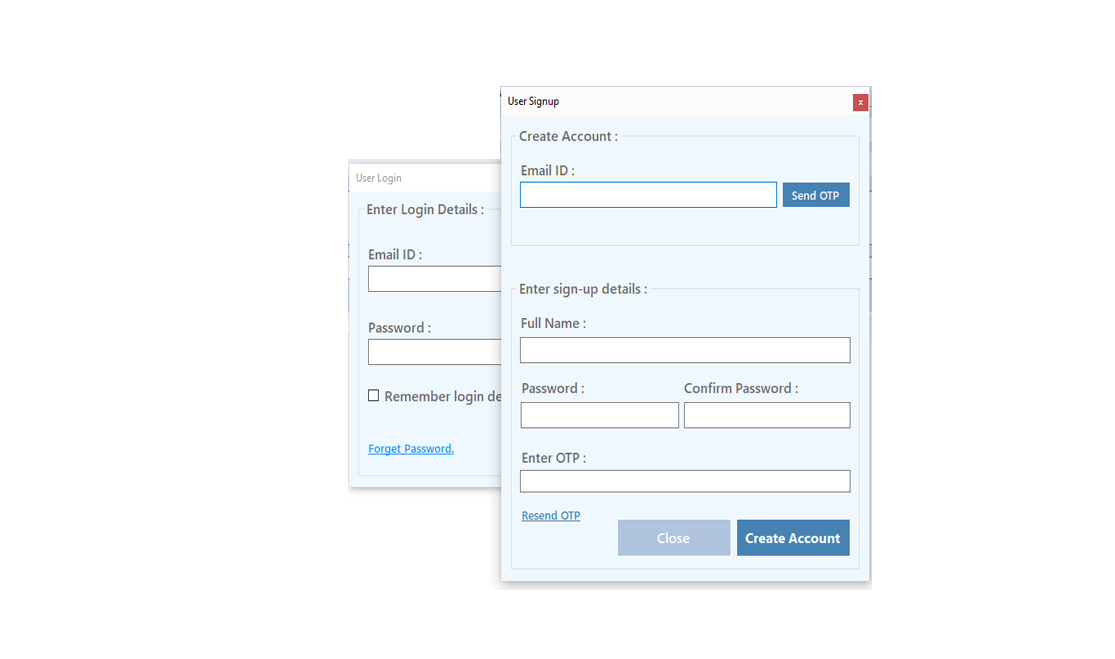
Enter OTP and Fill Details then click onCreate Account Button
Step 2: Login Your Account
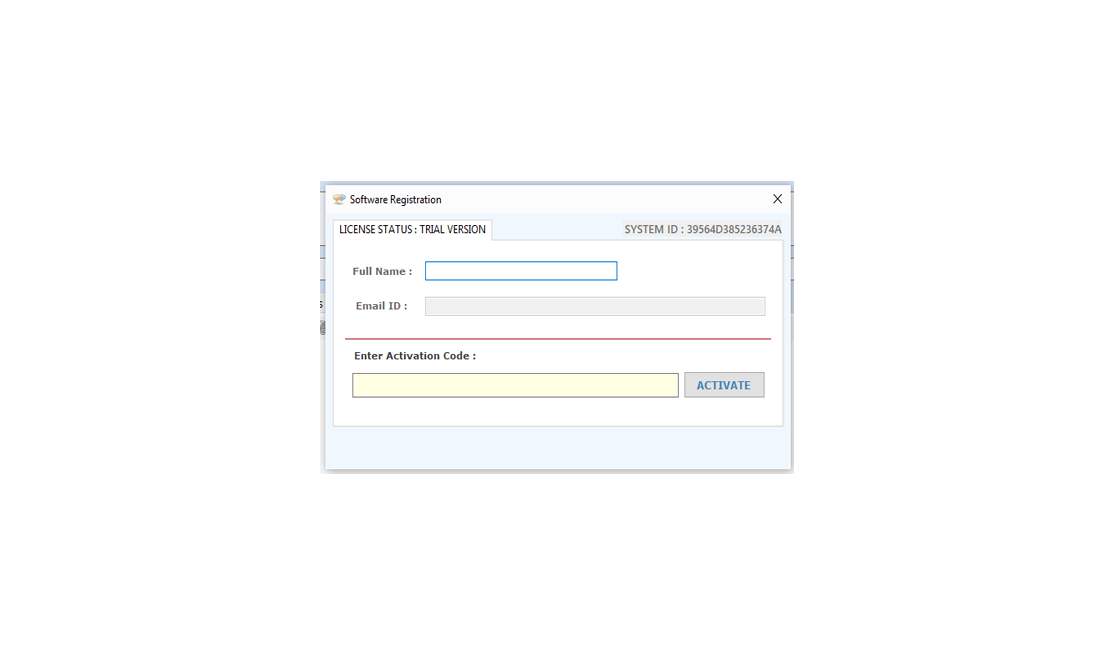
After Login you can Activate your license. The License will Assigned on the Email and always will work with that email.You can't assign license to other email after activation.
Step 1: Visit Help Menu and Select Activate
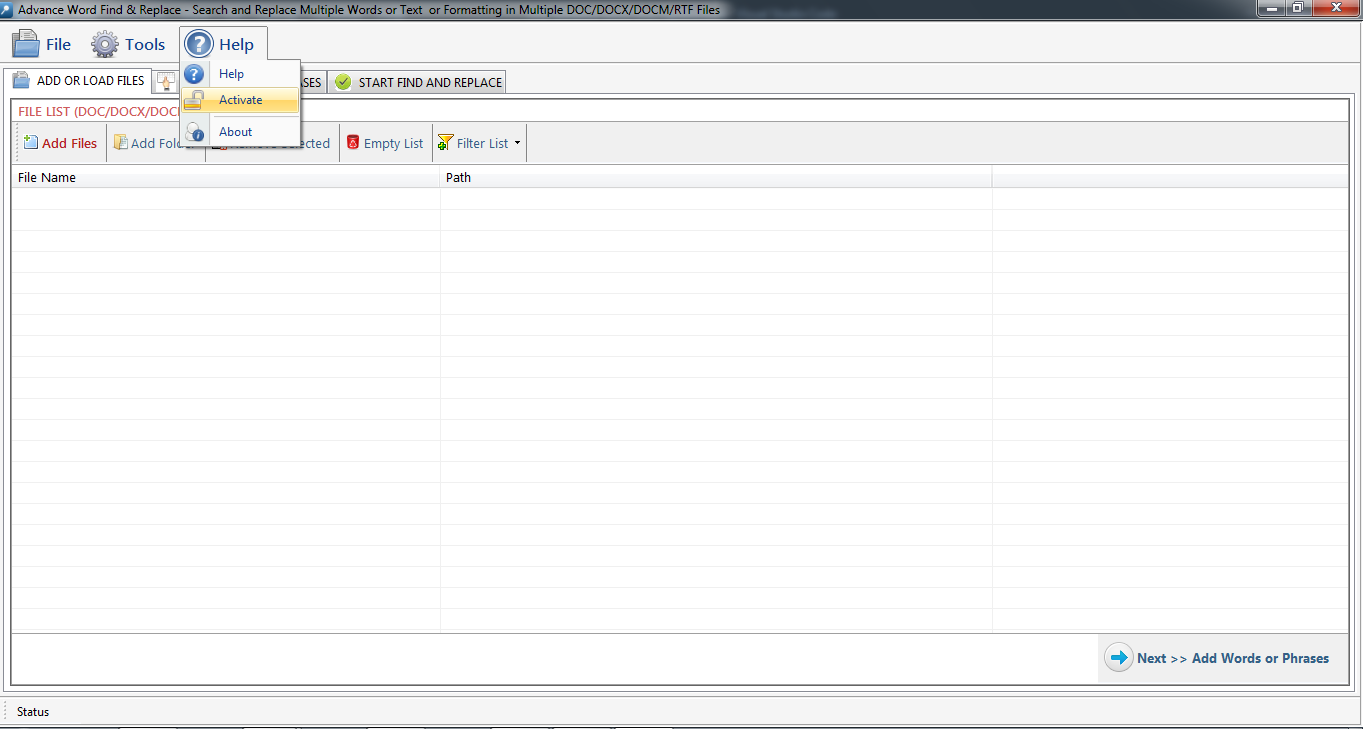
Step 2: Enter the License Key then Click on Activate Button
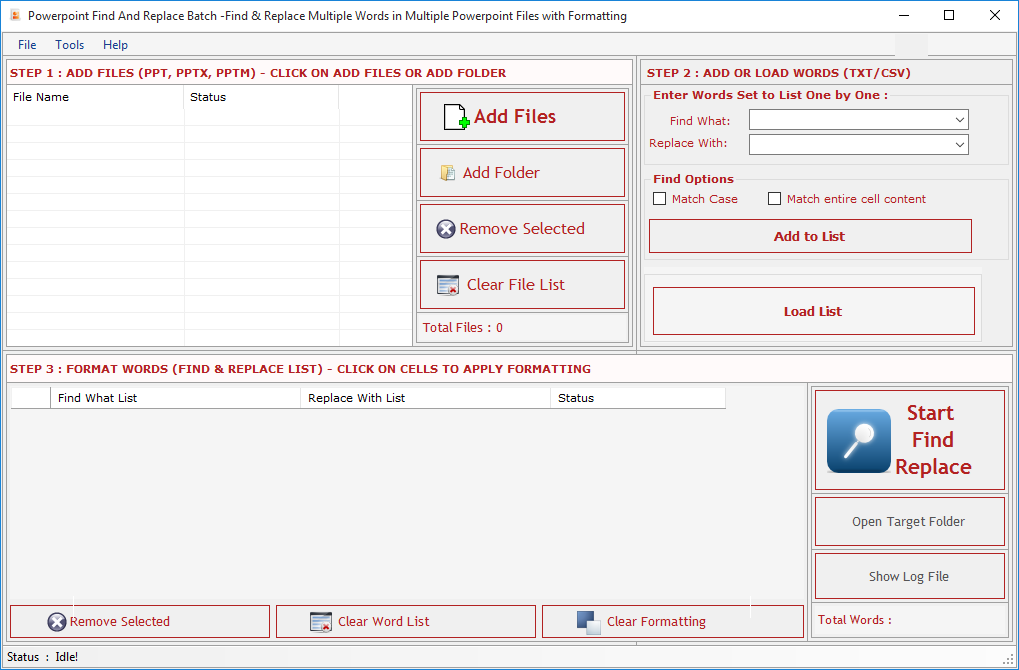
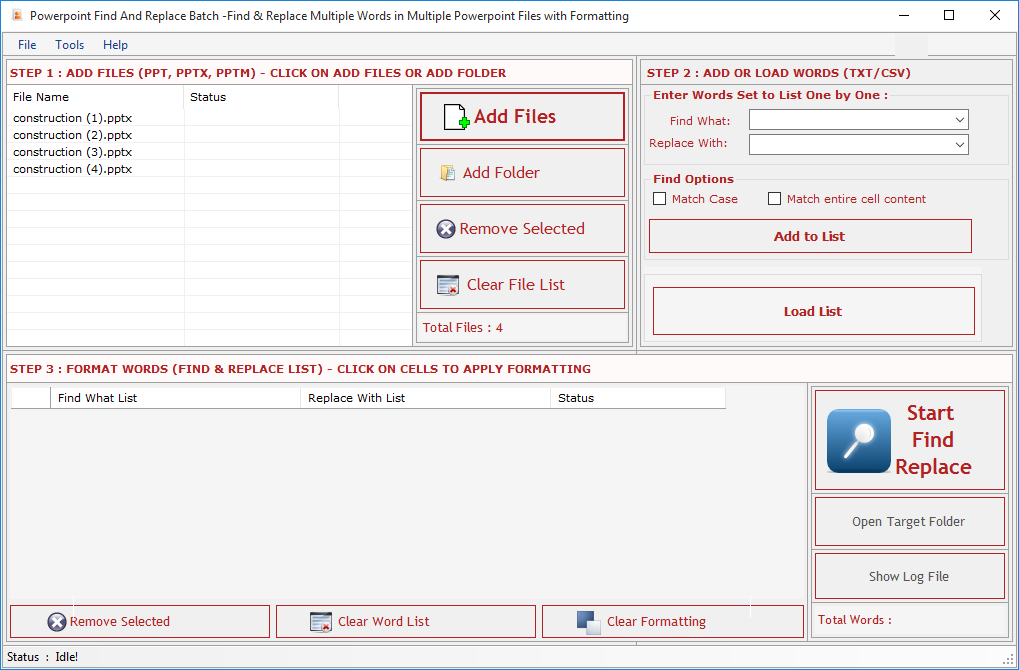
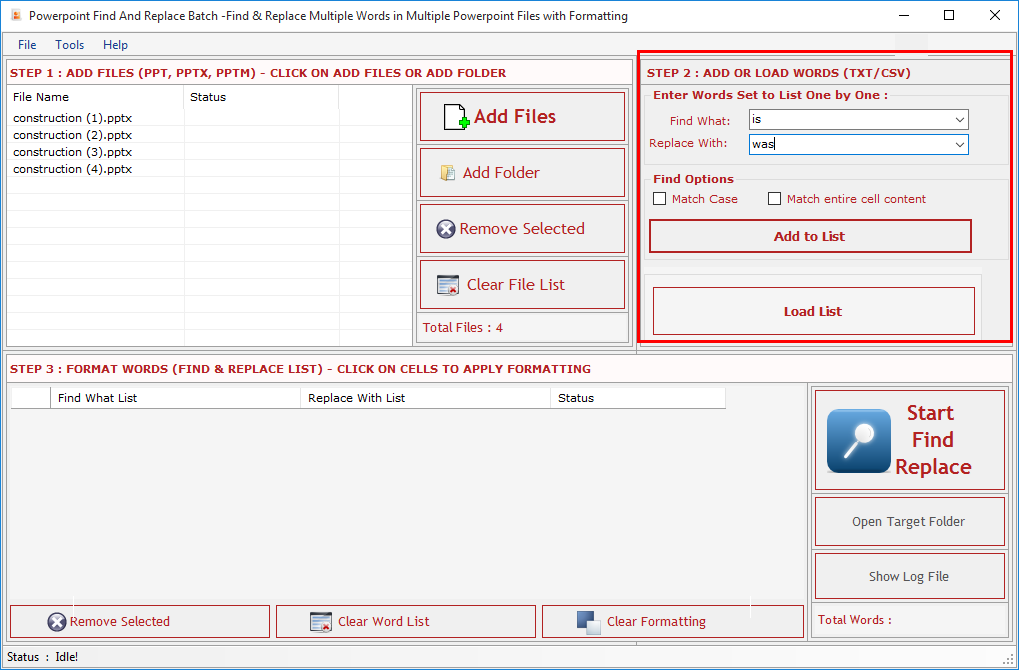
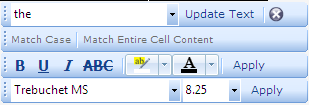
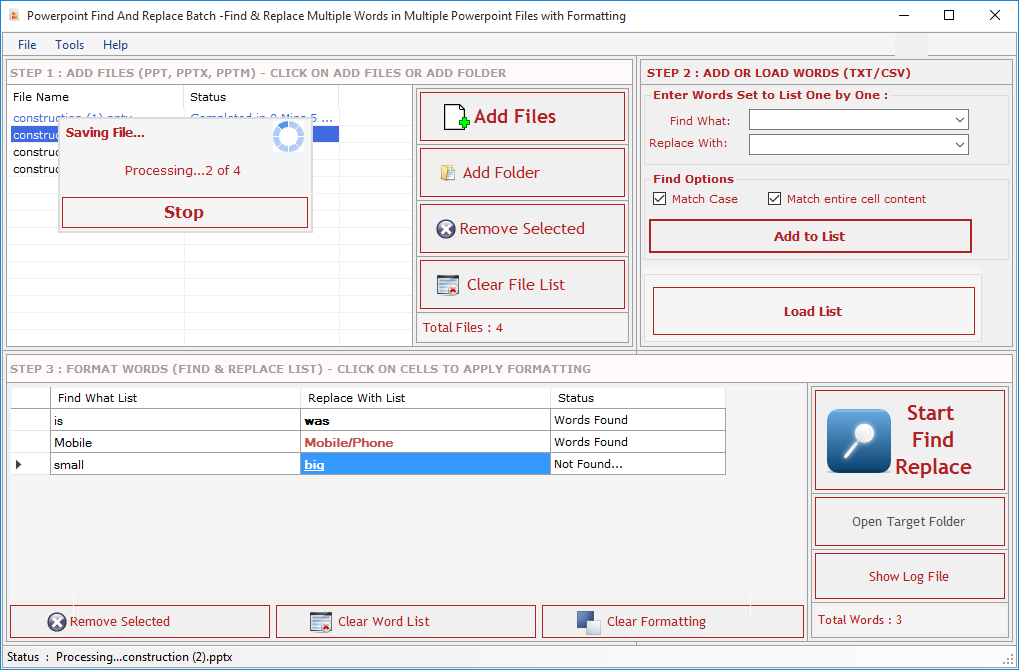
Find Options: Before adding word set select your desired find options. Match Case: Check this option if you want your search to be case sensitive. Match Whole Word: Check this option if you want your search to be word specific.
Add to List: Press this button to add words set to Word List below and to goto next Step.
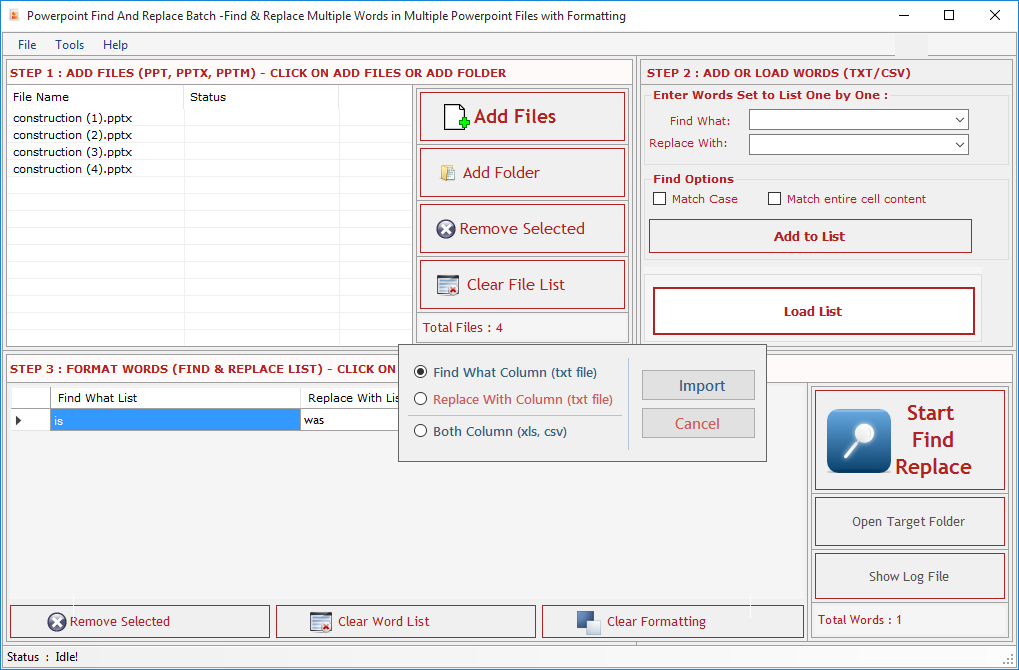
Load Word: Press this button to Load Words to Word List below from a CSV/TXT File but you have to choose for which column you want to load your words Find What or Replace With column.
Find What Column: Through this option user can add word list to find from .txt file.
Replace With Column: Through this option user can add word list to replace from .txt file.
Both Column (xls, csv): you can import two column list with this option from excel file (xls, csv format).
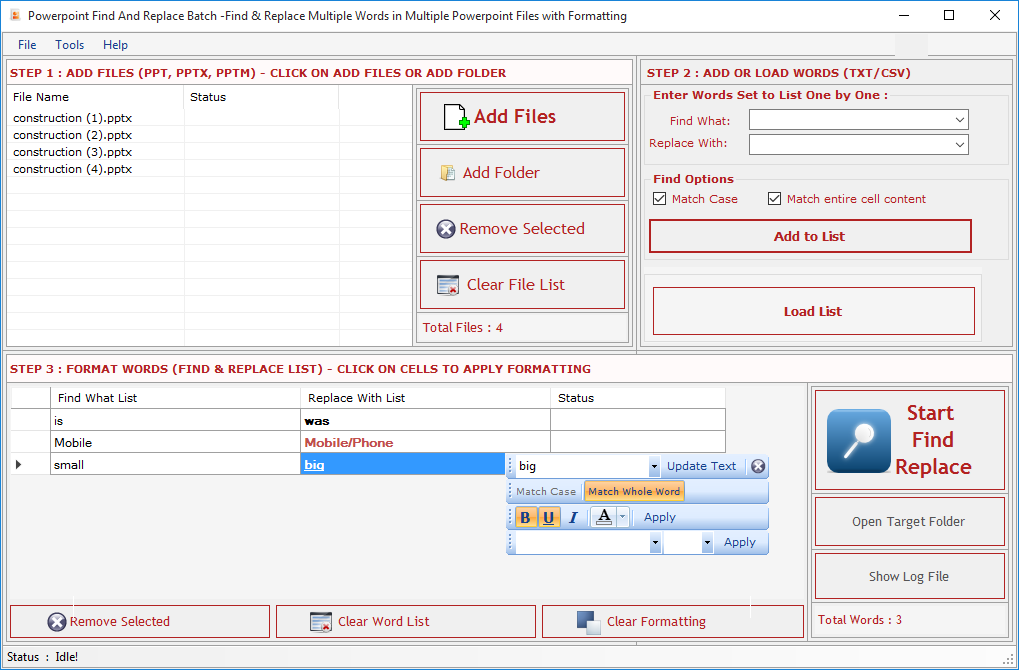 Remove Selected : Remove all selected words from the List.
Clear File List : Remove all words from the List and Empty the Word List.
Clear Formatting : Clear all applied formatting from the list.
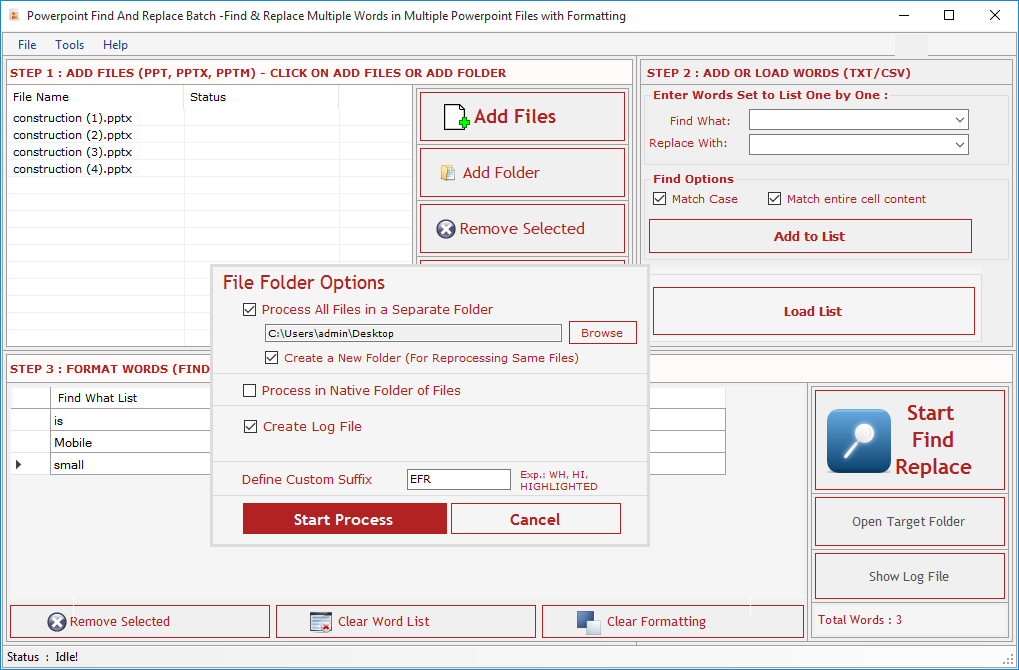
Start: To open the "File Folder Options".
Open Target Folder: To open Separate Folder which will be selected to save the processed files.
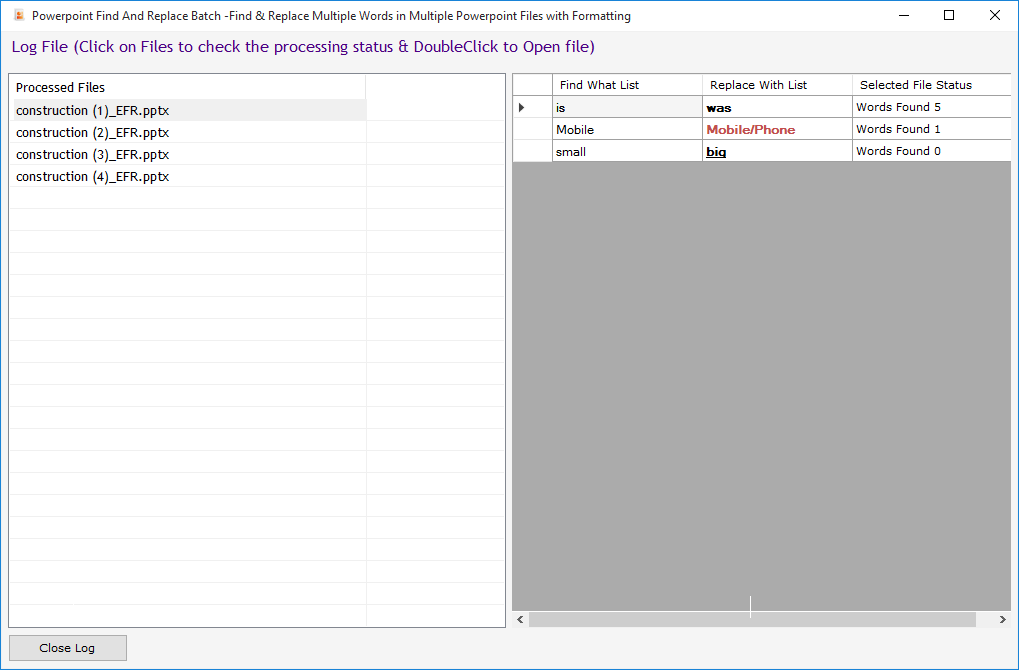
Show Log File: To open log File.
Remove Selected : Remove all selected words from the List.
Clear File List : Remove all words from the List and Empty the Word List.
Clear Formatting : Clear all applied formatting from the list.
Start: To open the "File Folder Options".
Open Target Folder: To open Separate Folder which will be selected to save the processed files.
Show Log File: To open log File.
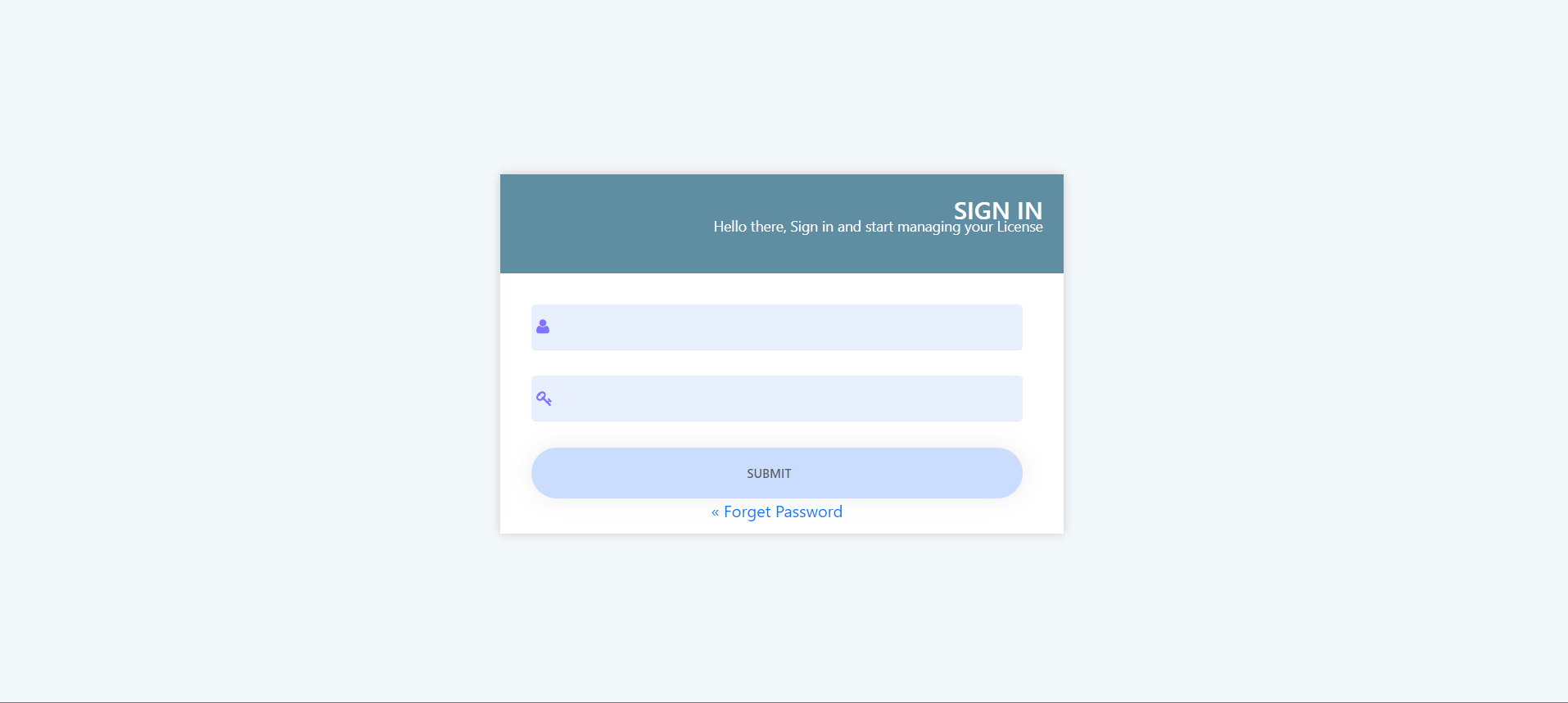
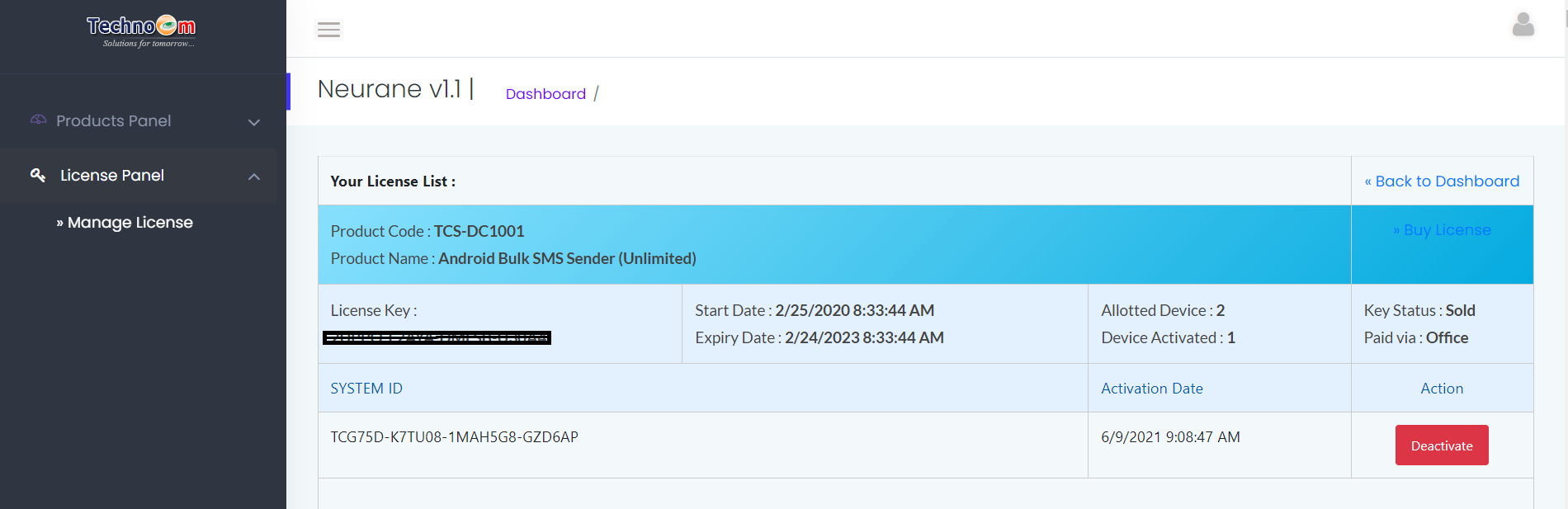
Visit: https://neurane.com/user/ Now Login
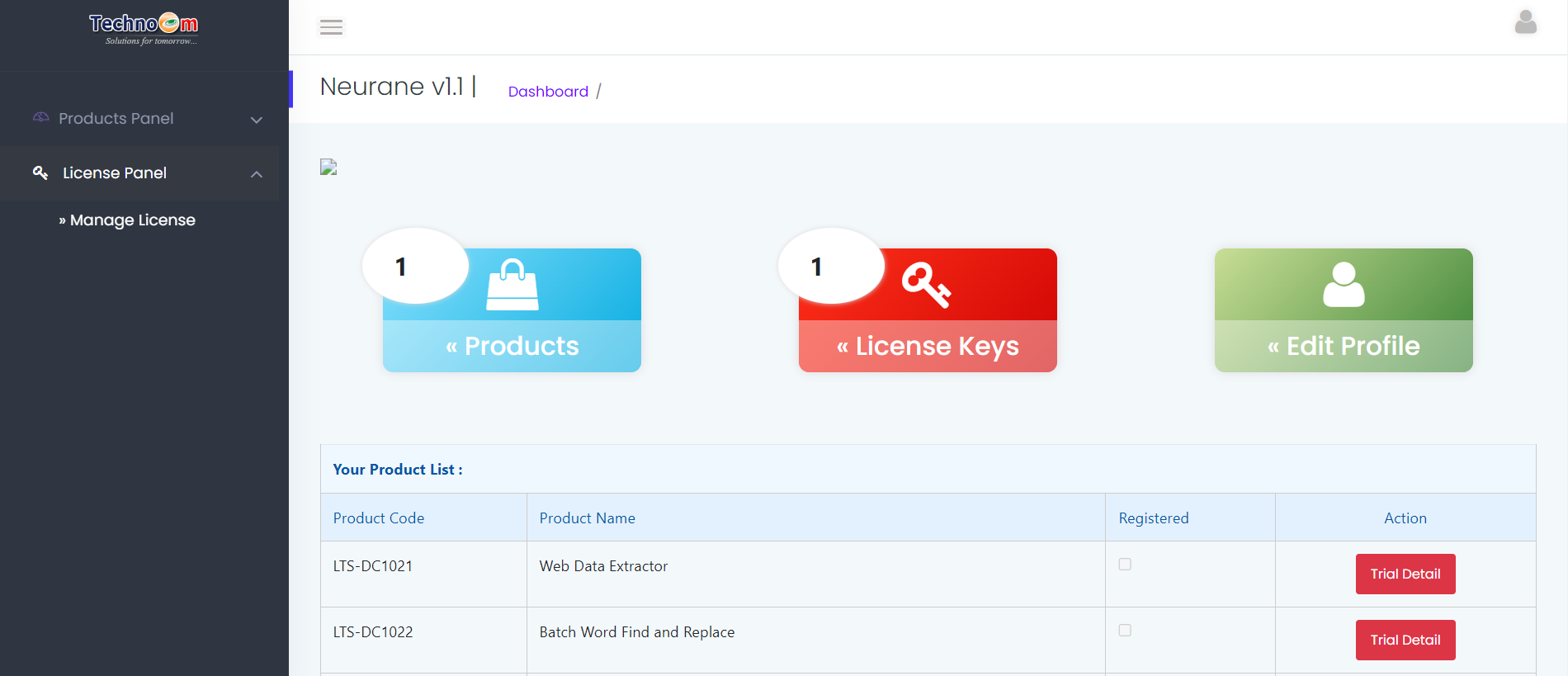
Step 1 : Click on License Panel > Manage License
Step 2 : Find License Key and then Click on Deactivate
Copyright © LantechSoft | info@lantechsoft.com