Q.1. How to Register, Buy and Activate the software?
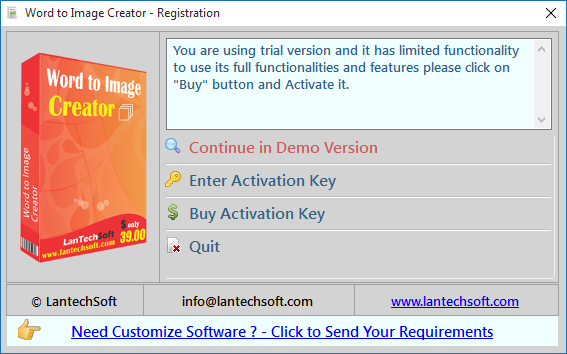
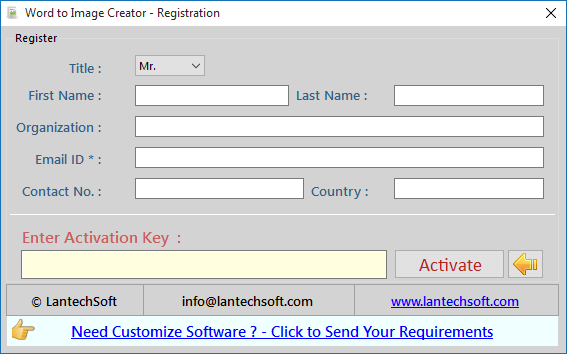
Register: To register the "Word To Image Creator " click on the "Enter Activation Key" Button and fill the Registration Detail with the Activation Code.
Buy : You have to Buy "Word To Image Creator" to get Activation Code. You Can Buy it From our Site by Clicking on "Buy Activation Key" button.
Try Demo: You can use demo version of "Word To Image Creator" by clicking on "Continue in Demo Version" Button.
Q.2. How to Add Files and Folder to the list?
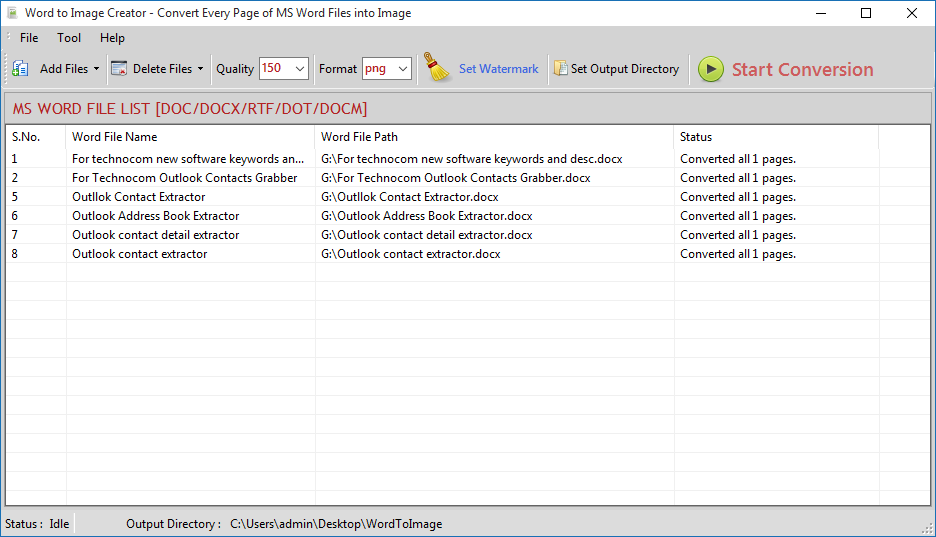
Run this software and add Word files( .doc, .docx, .rtf).
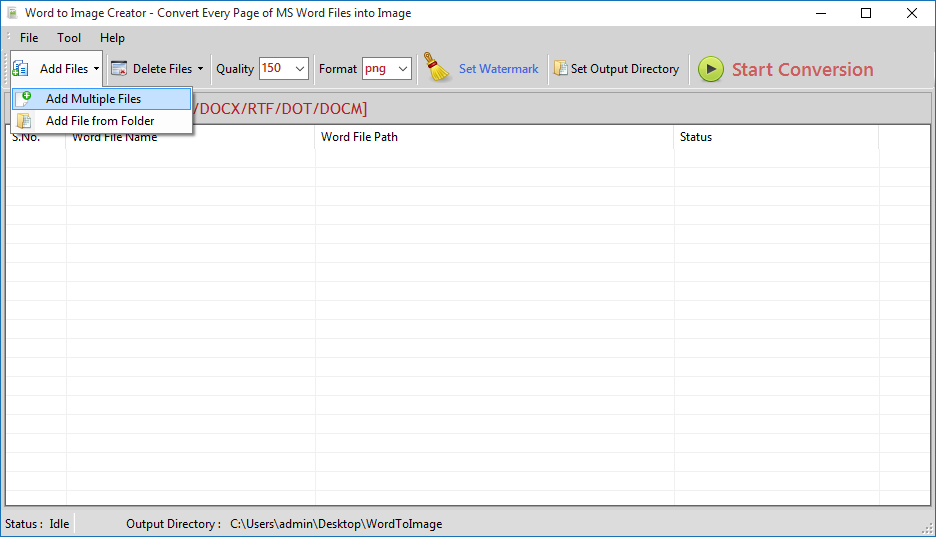
Add Microsoft Word files( .doc, .docx, .rtf) by click "Add Files" button. Then click on Add Multiple Files button.
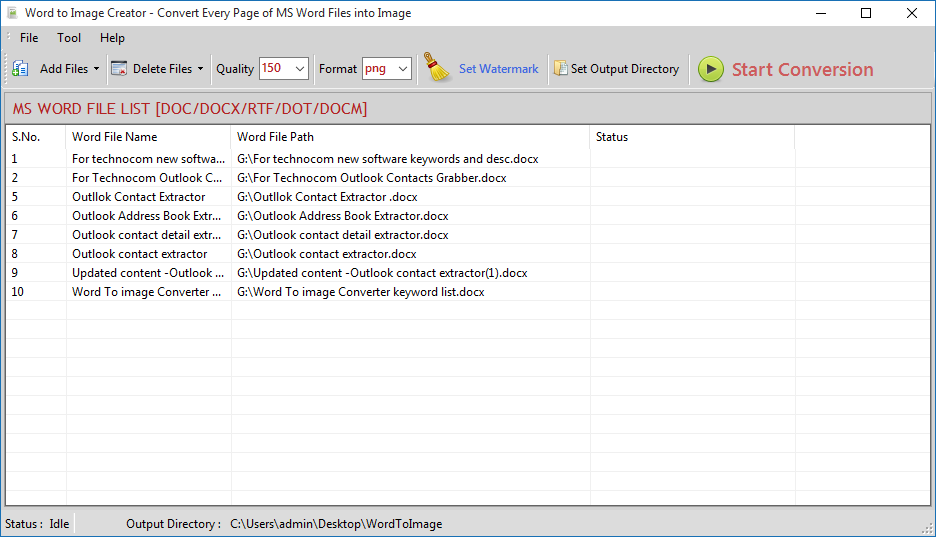
Select Word files as many as you want to convert selected files to Image of any formats(.jpg, .tif, .png, .gif, .bmp etc )
You can also add all MS Word files from a directory click "Add Files from Folder" button, select a folder and click "ok" button. it will add all available .doc & .docx, .rtf files in selected folder.
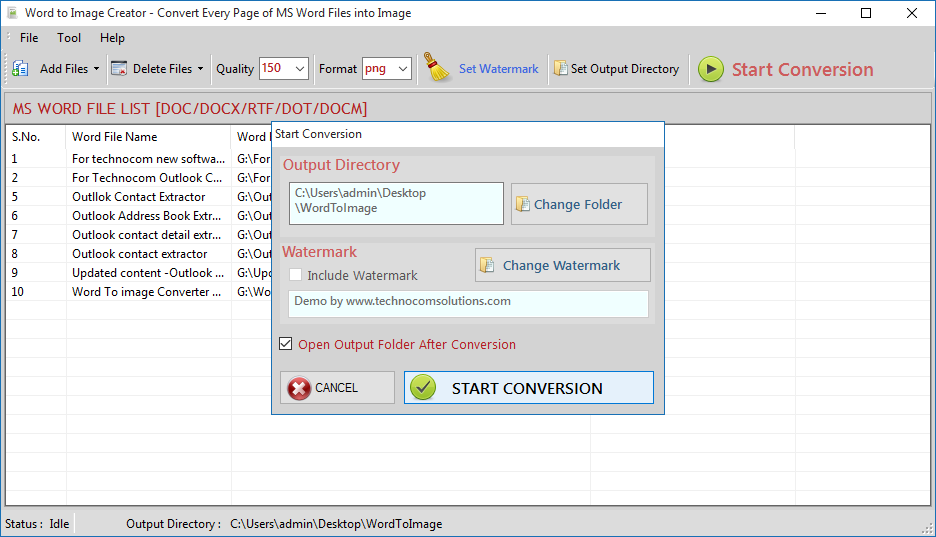
You have to select destination/Output folder by click "Change Folder" button.
Now you are ready to convert all selected files to a particular format of image as you can select from Format option.
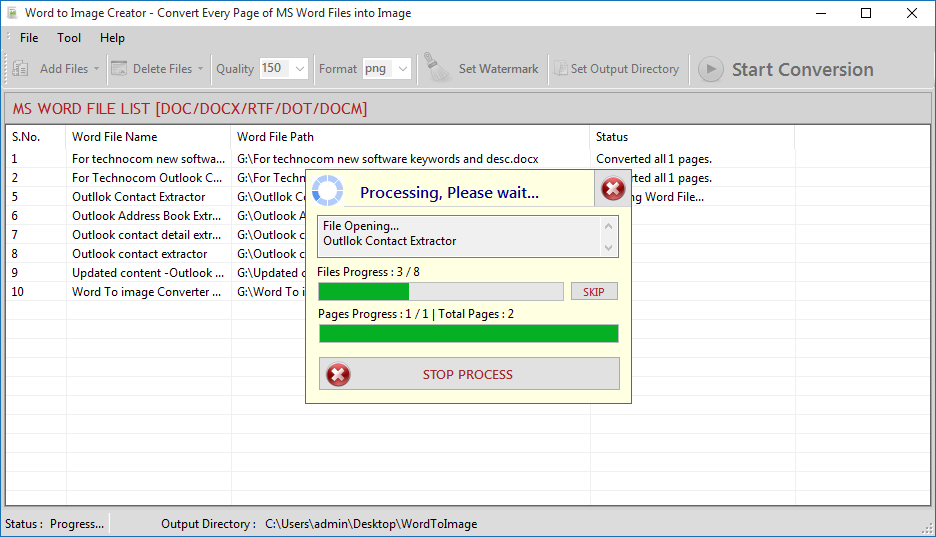
Finally click "Start Conversion" button and process/conversion will be started.
Q.3. How to Change Image Quality and Format?
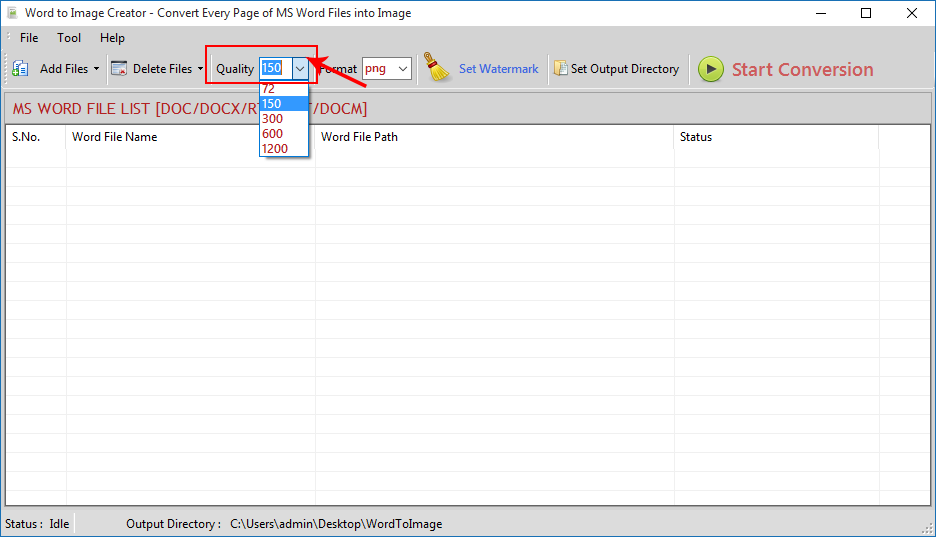
Change Image Quality from Quality option
Select the range of quality from list.
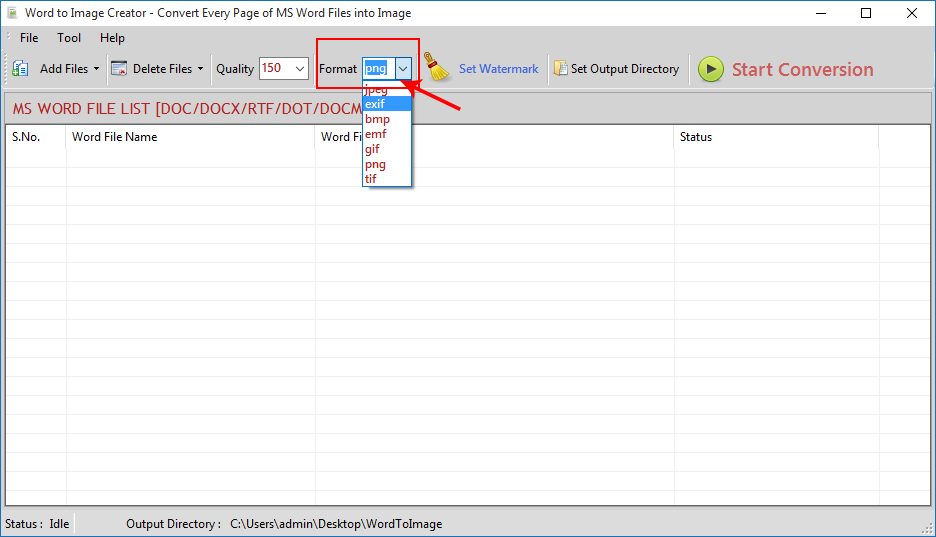
Also change Image formats to convert the word file (.jpg, .tif, .png, .gif, .bmp etc ).
Select from the list given in the Format option according to you.
Q 4 . How to Set Watermark in Image?
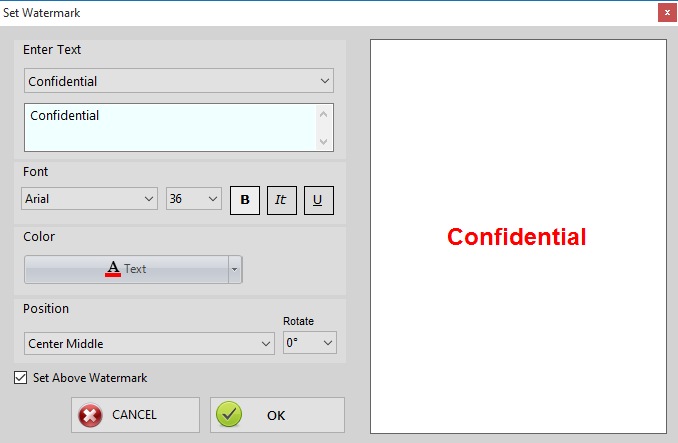
Click on Set Watermark option.
Select any text from list or write your own text in Enter Text option.
Change font and size from Font option.
You can also change the position of water mark according to you from Position option.
Also Rotate its position from Rotate Option.
Then click on Set Above Watermark check box to set the change you made and then press ok.
Q.5. How to Start Process?
Click on Start Conversion button to start the process.
Select destination/Output folder by click "Change Folder" button.
Finally click "Start Conversion" button and process/conversion will be started.
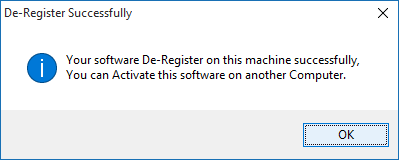
Q.6. How to Deactivate or Transfer License to Another PC?
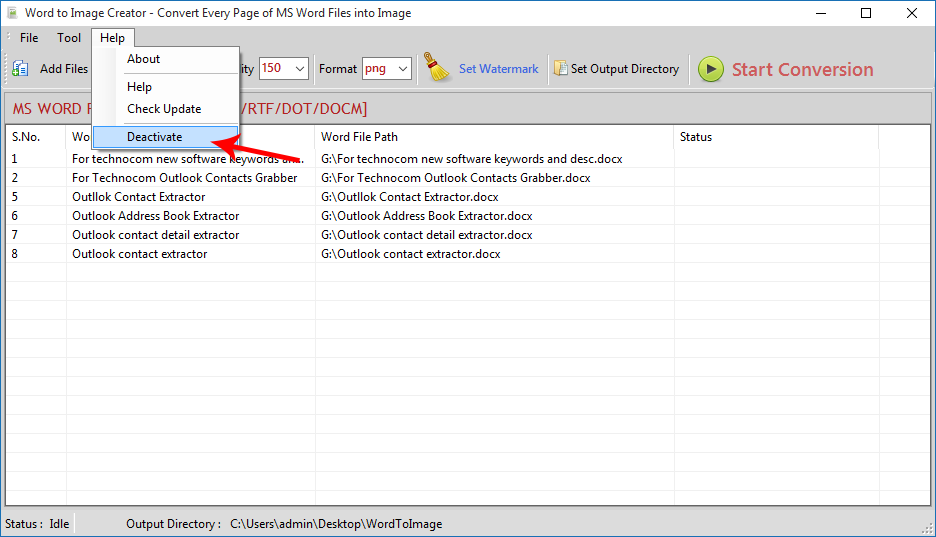
Go to: Help Menu Now click on Deactivate option
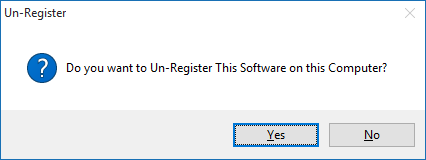
Step 1 : Deactivate from current PC.
Step 2 : Install the software on new PC and Register it with same Activation Key.
We are experiencing some issues with our website & database due to migration of server
Please be patient as it will be restored soon
Also existing users please don’t sign up again and wait for the full restoration
Notice
Apologies for the inconvenience.
We are currently experiencing a server issue that has temporarily affected access to our software product. Our technical team is working diligently to resolve this, and we anticipate the issue will be fixed within the next 72 hours.
We truly appreciate your patience and understanding during this time.