
Working with Microsoft Word and Excel is part of everyday business operations. From preparing reports and editing documents to managing spreadsheets and maintaining records, office professionals regularly perform repetitive tasks that consume valuable time.
The challenge becomes even greater when you need to process hundreds of documents or spreadsheets. Updating the same text across multiple Word files, combining Excel workbooks, splitting worksheets or changing document properties manually can become a time-consuming process.
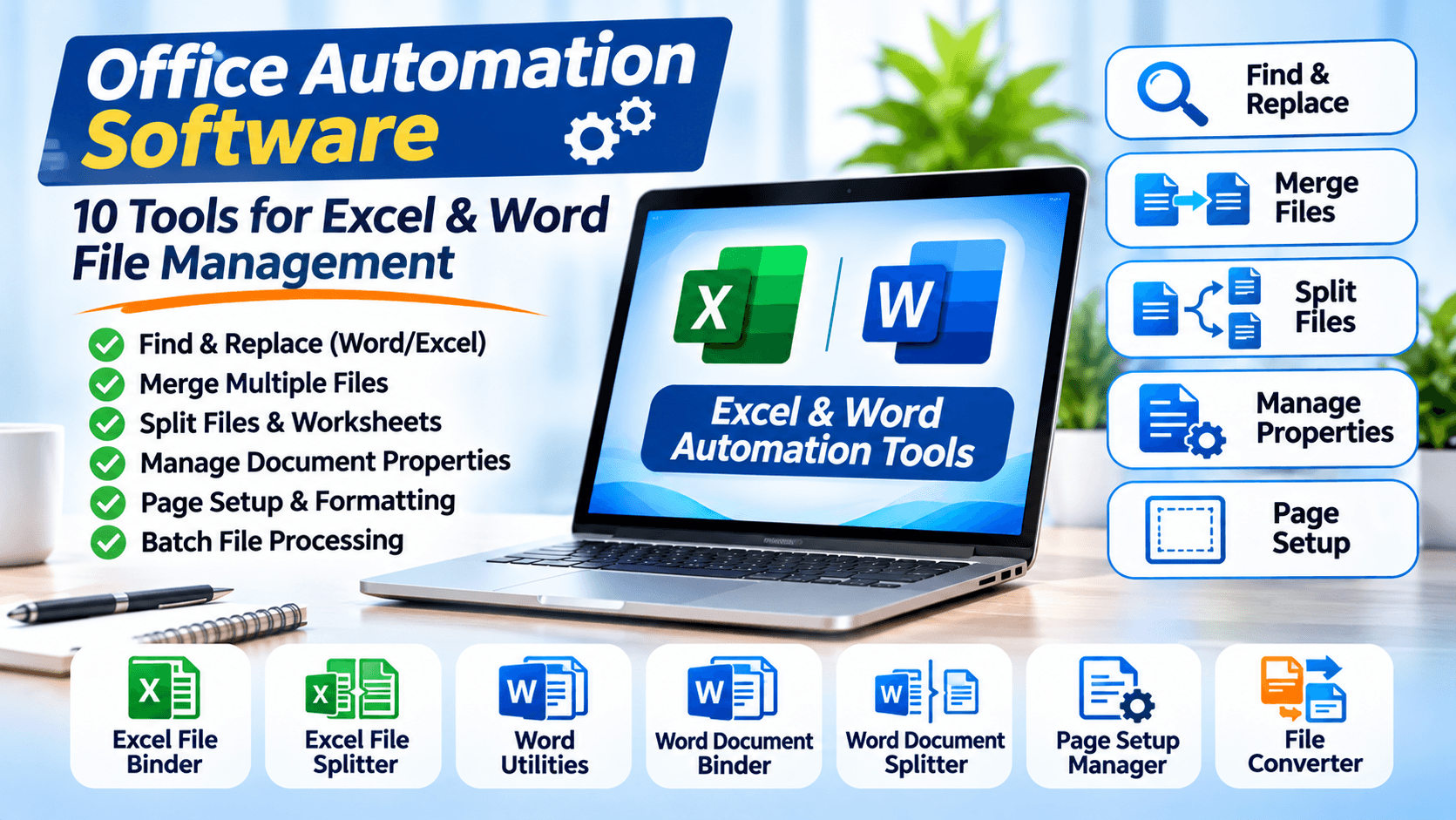
This is where Office Automation Software can make a difference.
Office automation tools help simplify repetitive document operations, reduce manual effort and improve productivity. Instead of opening every file individually, users can use specialized utilities to perform operations on multiple files in a single workflow.
In this guide, we will explore 10 useful office automation tools and explain how they can help manage Word documents, Excel spreadsheets and other office files more efficiently.
What Is Office Automation Software?
Office Automation Software refers to applications and utilities designed to automate repetitive office-related tasks.
These tools can help users manage documents, spreadsheets, presentations and other business files without performing every operation manually.
Common office automation activities include:
- Finding and replacing text across multiple documents.
- Combining multiple Excel workbooks.
- Splitting large Excel files into separate worksheets.
- Merging multiple Word documents.
- Splitting large Word documents into smaller files.
- Changing document properties in bulk.
- Managing page margins and orientation.
- Removing unwanted document objects.
- Converting multiple office files into different formats.
- Managing document information and metadata.
Office automation is particularly useful for businesses, educational institutions, accountants, data-entry professionals, administrative teams and organizations working with large document collections.
Why Do Businesses Need Office Automation Tools?
Imagine that your company maintains 500 Word documents and needs to update an old company name in every document.
Opening each file, finding the old name, replacing it and saving the document individually would take considerable time.
Similarly, imagine receiving 50 Excel workbooks from different departments and needing to combine them into one workbook.
Performing these operations manually can be repetitive and increases the possibility of mistakes.
Office automation tools help simplify such workflows.
Some important benefits include:
1. Save Time
Batch-processing tools can perform repetitive operations across multiple files, reducing the need to repeat the same steps manually.
2. Improve Productivity
Employees can spend less time on routine document operations and more time on important business activities.
3. Reduce Manual Errors
Automated processing can help maintain consistency when performing the same operation across multiple documents.
Always review important output files before using or distributing them.
4. Manage Large File Collections
Specialized tools can help process large numbers of Word and Excel files more efficiently.
5. Simplify Document Management
Merging, splitting, converting and organizing files becomes easier with dedicated utilities.
10 Useful Office Automation Tools for Everyday Work
Here are 10 useful types of office utilities that can simplify common Word and Excel tasks.
1. Word Find and Replace Software
One of the most common office tasks is finding and replacing text in Word documents.
For example, a company may need to update:
- An old company name.
- A business address.
- Contact information.
- Product names.
- Website URLs.
- Repeated words or phrases.
If you have only one document, Microsoft Word’s built-in Find and Replace feature is sufficient.
However, when you need to update hundreds of Word documents, a dedicated batch Find and Replace tool can be more convenient.
Recommended Tool: Advance Word Find & Replace
LantechSoft’s Advance Word Find & Replace is designed to find, replace and highlight words or phrases across multiple Word documents.
Its listed capabilities include:
- Batch Find and Replace.
- Support for DOC, DOCX and RTF files.
- Find and replace words in multiple documents.
- Highlight matching words.
- Apply text formatting.
- Wildcard search support.
- Case-sensitive search options.
- Processing logs.
- Separate output folder options.
Best for: Businesses, publishers, legal offices, HR departments and professionals who regularly update multiple Word documents.
Explore the software:
https://www.lantechsoft.com/advance-find-replace.html
2. Excel Find and Replace Batch Software
Excel spreadsheets often contain important business information, including customer records, inventory details, product information and financial data.
Suppose you maintain 100 Excel workbooks and need to replace an outdated product code or update a particular value.
Opening each workbook individually can be inefficient.
An Excel Find and Replace Batch utility can help automate repetitive replacement operations across supported spreadsheet files.
Common applications include:
- Updating product codes.
- Replacing outdated business information.
- Correcting repeated text values.
- Updating company names.
- Managing spreadsheet records.
- Maintaining consistent data across workbooks.
Recommended Tool: Excel Find & Replace Batch
LantechSoft lists Excel Find & Replace Batch among its office productivity utilities.
It is worth exploring for users who regularly need to perform Find and Replace operations across multiple Excel files.
Best for: Data-entry professionals, accountants, inventory managers and businesses working with multiple Excel spreadsheets.
Explore the available software through:
https://www.lantechsoft.com/office-files-converters.html
3. Excel File Binder – Merge Multiple Excel Files
Businesses often maintain separate Excel workbooks for different departments, months, projects or locations.
For example:
- January Sales Report.xlsx
- February Sales Report.xlsx
- March Sales Report.xlsx
- April Sales Report.xlsx
If you need to consolidate these workbooks, manually copying and pasting information can become inconvenient.
An Excel File Binder helps combine multiple Excel files into a single workbook.
Recommended Tool: Excel File Binder
LantechSoft Excel File Binder is designed to merge multiple Excel files into one workbook.
Its listed features include:
- Combine multiple Excel files.
- Support for XLS and XLSX formats.
- Add individual files or folders.
- Process multiple workbooks.
- Save the combined output in a selected folder.
- Simple workflow for non-technical users.
Best for: Accountants, business analysts, administrative teams and professionals who regularly consolidate spreadsheet information.
Explore the software:
https://www.lantechsoft.com/excel-file-binder.html
4. Excel File Splitter – Split Excel Worksheets
Sometimes you have one large Excel workbook containing multiple worksheets, but you need to distribute individual sheets separately.
For example, a workbook may contain:
- Sales Department
- Marketing Department
- HR Department
- Finance Department
- Operations Department
Instead of manually copying each worksheet into a separate workbook, an Excel File Splitter can simplify the process.
Recommended Tool: Excel File Splitter
LantechSoft Excel File Splitter is designed to split Excel worksheets into separate files.
Its listed capabilities include:
- Split worksheets into separate files.
- Support for XLS and XLSX formats.
- Process multiple Excel files.
- Save generated files in a selected folder.
- Simplify repetitive spreadsheet operations.
Best for: Businesses, accountants, data analysts and administrative teams that distribute spreadsheet information among different departments.
Explore the software:
https://www.lantechsoft.com/excel-file-splitter.html
5. Batch Word Utilities – Automate Multiple Word Operations
Microsoft Word provides many useful features, but performing repetitive operations across hundreds of documents can still be challenging.
For example, you may need to remove hyperlinks, delete images, change page settings or manage tracked changes across multiple documents.
Using a dedicated utility can simplify these operations.
Recommended Tool: Batch Word Utilities
LantechSoft Batch Word Utilities provides multiple commands for processing Word documents in bulk.
Its listed features include:
- Remove hyperlinks from multiple Word files.
- Remove images and drawing objects.
- Remove text frames and shapes.
- Remove headers and footers.
- Accept or reject tracked changes.
- Merge multiple Word documents.
- Split documents by pages or sections.
- Change page setup across multiple documents.
The software supports batch processing of large document collections.
Best for: Office administrators, publishers, legal professionals, document-management teams and businesses handling large Word archives.
Explore the software:
https://www.lantechsoft.com/batch-word-utilities.html
6. Batch Word Document Binder – Merge Multiple Word Documents
Combining multiple Word documents into a single report is another common office requirement.
For example, a company may maintain separate documents for:
- Project introduction.
- Project objectives.
- Financial information.
- Department reports.
- Project conclusions.
Combining these documents manually can be time-consuming.
A Word Document Binder helps consolidate multiple documents into one.
Recommended Tool: Batch Word Document Binder
This utility is designed to combine multiple Word documents into a single document.
It can be useful for:
- Preparing business reports.
- Combining research chapters.
- Creating project documentation.
- Consolidating departmental reports.
- Organizing training materials.
Best for: Researchers, students, business professionals and organizations that regularly combine Word documents.
Explore the tool through the LantechSoft Office Files Converters collection:
https://www.lantechsoft.com/office-files-converters.html
7. Batch Word Document Splitter – Divide Large Documents
Sometimes a large Word document needs to be divided into multiple smaller files.
For example, a 200-page document may contain several chapters or sections that need to be distributed separately.
Manually copying content into new documents can take considerable time.
Recommended Tool: Batch Word Document Splitter
LantechSoft Batch Word Document Splitter is designed to split Word documents into separate files.
It supports commonly used Word formats such as DOC, DOCX and RTF.
Possible applications include:
- Splitting large reports.
- Separating document chapters.
- Dividing training materials.
- Organizing multi-section documents.
- Preparing individual document files.
Best for: Publishers, educational institutions, researchers and document-management professionals.
Explore the software:
https://www.lantechsoft.com/office-files-converters.html
8. Word Page Setup Manager – Manage Page Layout in Bulk
Maintaining consistent formatting across multiple Word documents is important for professional documentation.
For example, an organization may need to standardize page margins, orientation and layout across hundreds of reports.
Changing these settings individually can be repetitive.
Recommended Tool: Word Page Setup Manager
LantechSoft Word Page Setup Manager is designed to manage page layouts and margins across multiple Word documents.
Its listed features include:
- Change page margins.
- Set portrait or landscape orientation.
- Manage page layouts.
- Process multiple Word documents.
- Support different Word file formats.
- Save processed files in a selected location.
Best for: Office administrators, publishers, educational institutions and businesses that maintain standardized documents.
Explore the software:
https://www.lantechsoft.com/word-page-setup-manager.html
9. Word Document Details Editor – Manage Document Properties
Microsoft Word documents contain more than their visible content.
They can also include document properties such as:
- Author.
- Title.
- Subject.
- Keywords.
- Other document information.
When managing a large collection of documents, maintaining consistent document properties can be important.
Recommended Tool: Word Document Details Editor
LantechSoft offers a Word Document Details Editor for working with document properties.
It can be useful for organizing document libraries, standardizing document information and managing business archives.
Best for: Businesses, publishers, administrative departments and organizations maintaining large document collections.
Explore the software through:
https://www.lantechsoft.com/office-files-converters.html
10. Total Excel Files Converter – Convert Multiple Excel Files
Businesses sometimes need to convert Excel files into different formats for compatibility, migration or document-sharing purposes.
For example, an organization may need to convert a collection of Excel workbooks into another supported spreadsheet format.
Instead of converting every file individually, batch conversion software can simplify the process.
Recommended Tool: Total Excel Files Converter
LantechSoft Total Excel Files Converter is designed to convert multiple Excel files into supported formats.
It can be useful for:
- Spreadsheet migration.
- Office file conversion.
- Managing Excel archives.
- Processing multiple workbooks.
- Preparing files for compatible applications.
Best for: Businesses, data administrators and professionals working with large spreadsheet collections.
Explore the available tools:
https://www.lantechsoft.com/office-files-converters.html
Office Automation Tools: Which One Should You Choose?
Different office tasks require different utilities. Here is a quick comparison to help you identify the right tool.
| Office task | Recommended software |
|---|---|
| Find and replace text in Word | Advance Word Find & Replace |
| Replace values across Excel files | Excel Find & Replace Batch |
| Merge Excel workbooks | Excel File Binder |
| Split Excel worksheets | Excel File Splitter |
| Perform multiple Word operations | Batch Word Utilities |
| Merge Word documents | Batch Word Document Binder |
| Split Word documents | Batch Word Document Splitter |
| Manage Word page layouts | Word Page Setup Manager |
| Manage Word properties | Word Document Details Editor |
| Convert Excel files | Total Excel Files Converter |
You do not necessarily need every tool. Start by identifying the repetitive operations that take the most time in your daily work.
How to Choose the Right Office Automation Software?
Before purchasing office automation software, consider the following factors.
1. Identify Your Main Requirement
Determine whether you primarily need text replacement, file conversion, merging, splitting or document formatting.
2. Check Supported File Formats
Make sure the application supports the file formats you regularly use, such as DOC, DOCX, XLS and XLSX.
3. Look for Batch Processing
If you work with multiple documents, choose software that supports batch operations.
4. Check Compatibility
Review the supported Windows and Microsoft Office versions before installing the software.
5. Consider Output and Backup Options
For important business files, check whether the software provides a separate output folder, backup options or processing logs.
6. Evaluate Ease of Use
A straightforward interface can make office automation easier for employees who do not have technical experience.
7. Test Before Purchasing
Where a trial or demo version is available, test it with sample files before using it on important business documents.
Why Explore LantechSoft Office Automation Tools?
LantechSoft offers a collection of specialized desktop utilities for Microsoft Word, Excel and PowerPoint users.
Instead of performing every repetitive office operation manually, users can explore dedicated tools designed for particular tasks.
The collection covers:
- Batch Find and Replace.
- Excel workbook merging.
- Excel worksheet splitting.
- Word document merging.
- Word document splitting.
- Document property management.
- Page setup management.
- Batch Word processing.
- Excel file conversion.
- Office document management.
Whether you are an individual professional or part of a business team, these tools can help simplify everyday document operations.
Explore the complete collection:
LantechSoft Office Files Converters and Utilities
Frequently Asked Questions (FAQs)
1. What is the best Office Automation Software?
The best Office Automation Software depends on your requirements. For batch Word editing, you can explore Advance Word Find & Replace or Batch Word Utilities. For Excel file management, Excel File Binder and Excel File Splitter are useful options to consider.
2. Can I find and replace text in multiple Word documents?
Yes. Batch Find and Replace software can process multiple Word documents and replace selected words or phrases without requiring you to edit each file individually.
3. How can I merge multiple Excel files into one workbook?
You can use an Excel File Binder to combine multiple supported Excel workbooks into a single workbook.
4. Can I split one Excel workbook into separate files?
Yes. An Excel File Splitter can separate worksheets from a workbook and save them as individual files.
5. Can I merge multiple Word documents?
Yes. Dedicated Word Document Binder software can combine multiple Word documents into a single document.
6. Can I split a large Word document into smaller files?
Yes. A Word Document Splitter can divide large Word documents into smaller files based on the supported splitting options.
7. What is batch processing in office software?
Batch processing means performing the same operation on multiple files in one workflow rather than processing every file individually.
8. Is office automation software useful for small businesses?
Yes. Small businesses can use office automation utilities to reduce repetitive work involving reports, spreadsheets, invoices, business documents and other office files.
9. Does LantechSoft offer Word and Excel automation tools?
Yes. LantechSoft offers specialized utilities for Word Find and Replace, Excel file merging, worksheet splitting, document management, conversion and other office operations.
10. Can office automation tools replace Microsoft Office?
No. Most office automation utilities are designed to complement existing office applications by simplifying specific repetitive operations. They are not necessarily replacements for Microsoft Word or Excel.
Conclusion
Managing multiple Word documents and Excel spreadsheets can become challenging when the same operations need to be repeated across hundreds of files.
Office Automation Software provides practical solutions for repetitive tasks such as Find and Replace, document merging, spreadsheet splitting, file conversion and document property management.
By choosing the right tools, businesses and professionals can simplify everyday workflows, reduce manual effort and improve document-management efficiency.
LantechSoft provides a range of specialized Word and Excel utilities designed to handle these requirements.
Explore the available tools and choose the solutions that best match your office workflow.
Visit LantechSoft Products to discover useful office automation and productivity software.
